

Overview
Tag Insight can be set up in just a few simple steps. This guide will walk you through the process of getting your first tracking plan monitored.1
Create your account
Sign up for Tag Insight and create your organization
2
Create a project
Set up your first project for the property you want to monitor
3
Install the pixel
Add the Tag Insight pixel to your website
4
Import your tracking plan
Import your existing tracking plan or create a new one
5
Start monitoring
Configure your audits and start receiving alerts
1. Create your organization
When you first log into Tag Insight, you’ll need to create an organization. This is the top-level container for all your projects.Organizations can contain multiple projects, allowing you to manage tracking for different brands, environments, or properties.
2. Create your first project
Projects in Tag Insight represent individual tracking implementations. Each project gets its own unique pixel.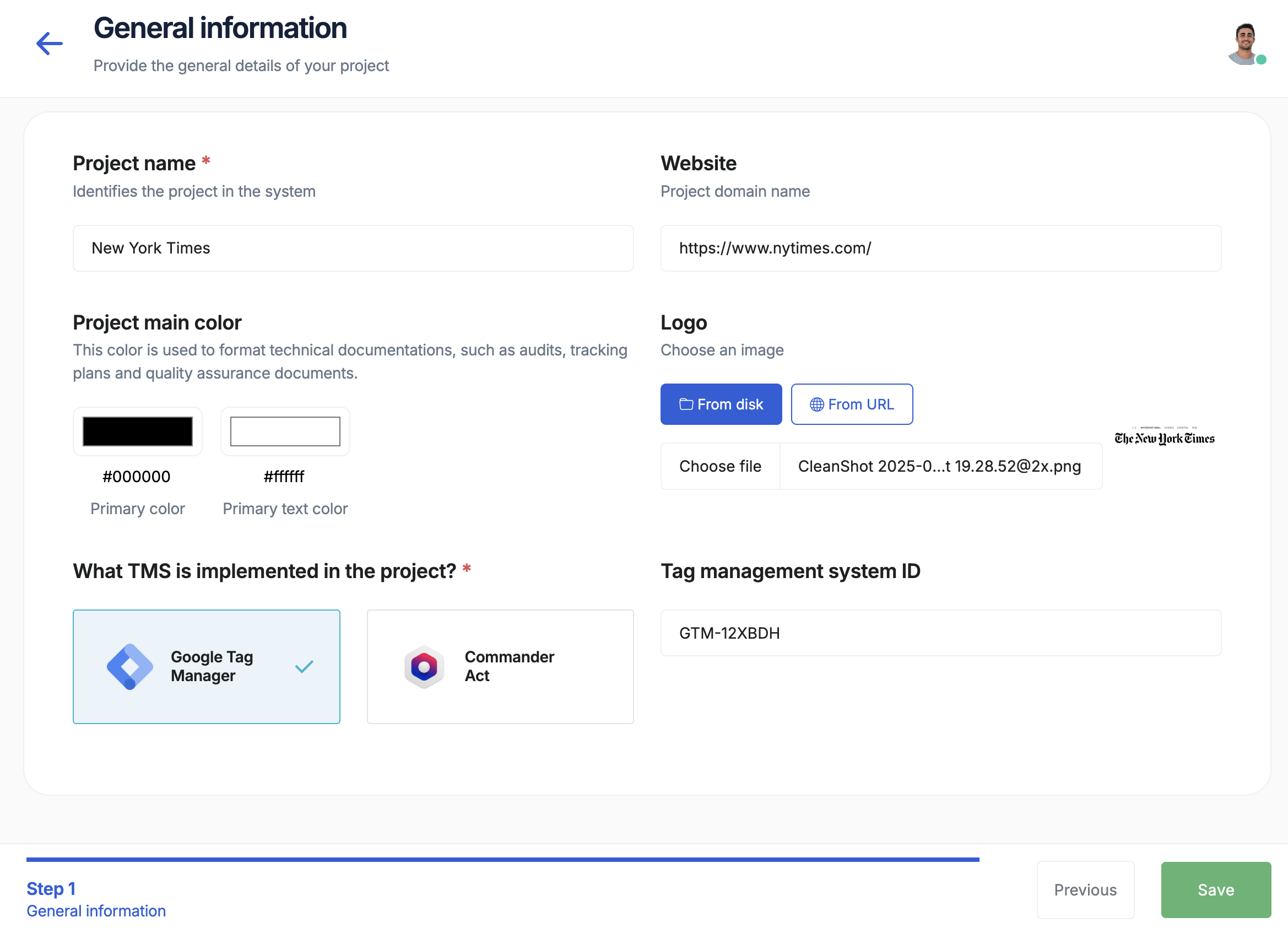
Creating a project
Creating a project
- Click New Project from your organization dashboard
- Enter a project name (e.g., “Production - Main Site”)
- Select your Tag Management System (GTM, Commander Act, or Tealium)
- Add a project logo (optional but recommended for documentation)
- Click Create Project
Project best practices
Project best practices
- Create separate projects for different environments (staging, production)
- Use descriptive names that include the environment and property
- One pixel = one project, so plan accordingly
3. Install the Tag Insight pixel
The Tag Insight pixel is a lightweight JavaScript tag that monitors your data layers in real-time.Installation via Google Tag Manager
Key features of the pixel
- Lightweight: Less than 200KB
- Privacy-compliant: No cookies, exempt from consent requirements
- Performance-optimized: Asynchronous loading, no impact on page speed
- Universal: Works with any data layer structure
4. Import your tracking plan
Tag Insight offers multiple methods to import your tracking plan:Automatic detection
Use the Detect Tracking Plan feature to automatically discover and import your existing implementation
Chrome extension
Use our Chrome extension to capture data layers as you browse your site
Manual import
Import from Excel or create your tracking plan manually
Templates
Start from pre-built templates for common implementations
Quick import with Chrome extension
1
Install extension
Install the Tag Insight Chrome extension from the Chrome Web Store
2
Activate capture
Navigate to your website and click the extension icon to start capturing
3
Browse your site
Navigate through key user journeys (product views, add to cart, checkout)
4
Import events
Stop capture and select which events to import into your project
5. Configure your first audit
Once your tracking plan is imported, set up automated monitoring:Audit configuration options
- Frequency: Hourly, daily, weekly, or continuous
- Scope: Full tracking plan or specific events
- Alerts: Email notifications for regressions
- Sampling: Choose between sampled or full traffic analysis
Next steps
Congratulations! Tag Insight is now monitoring your tracking implementation. Here’s what to do next:Configure alerts
Set up alert rules and notification preferences
Explore reports
Learn how to read and act on audit reports
Add team members
Invite your team and set up permissions
Advanced setup
Configure multi-environment monitoring
Need help? Contact our support team at [email protected] or check out our FAQ.