

Overview
A tracking plan is your source of truth for data collection. It defines what events should be tracked, which variables they contain, and what values are expected. Tag Insight makes creating and maintaining tracking plans simple and efficient.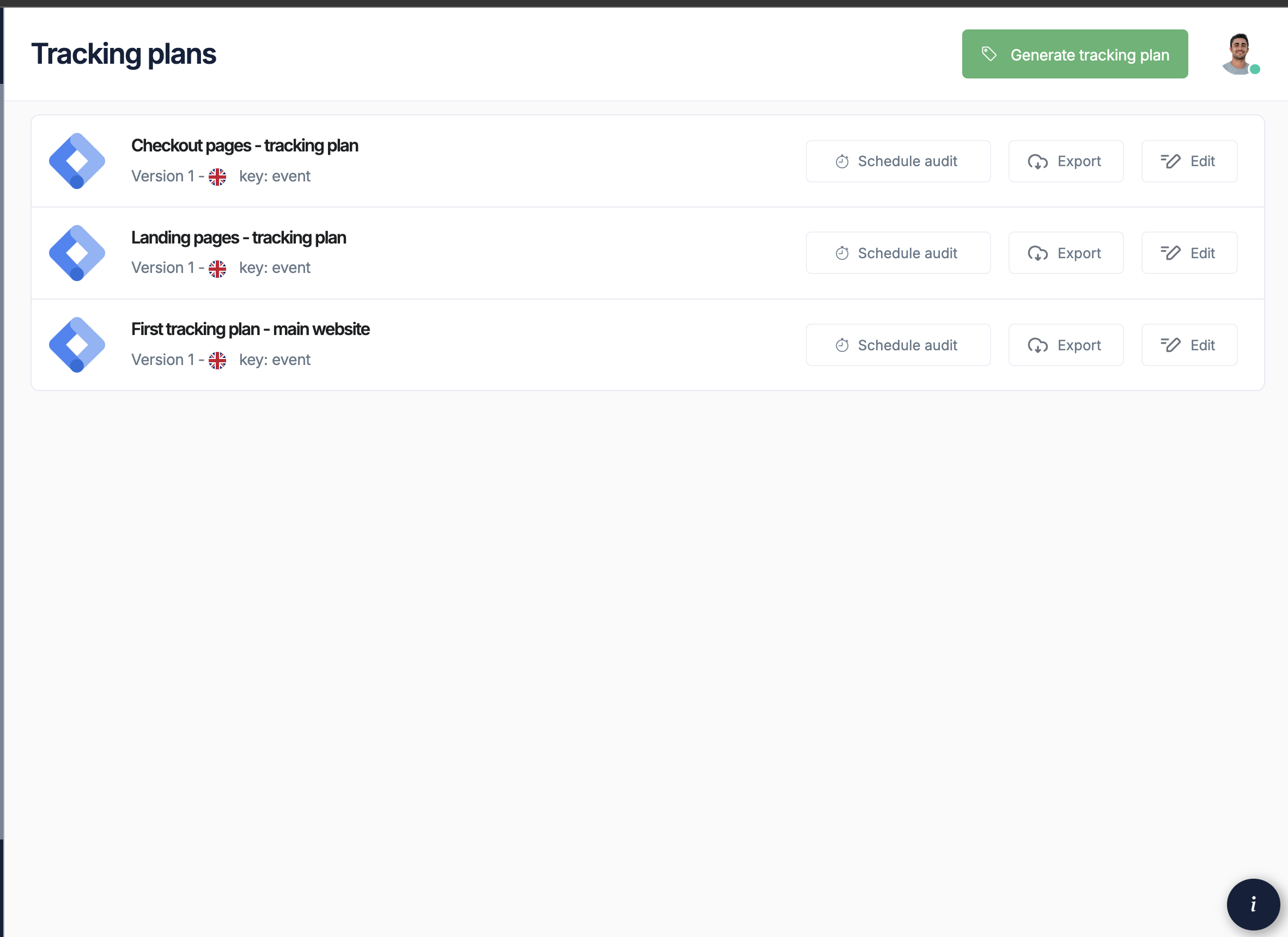
Creating your first tracking plan
1
Navigate to tracking plans
From your project dashboard, click Tracking Plans in the navigation
2
Click new tracking plan
Select + New Tracking Plan to start the creation process
3
Configure basic settings
- Name: Give your tracking plan a descriptive name
- Description: Add details about its purpose
- Template: Choose a starting template or start from scratch
4
Add events
Begin adding events that you want to track
Understanding events
Events represent user interactions or system occurrences that you want to track.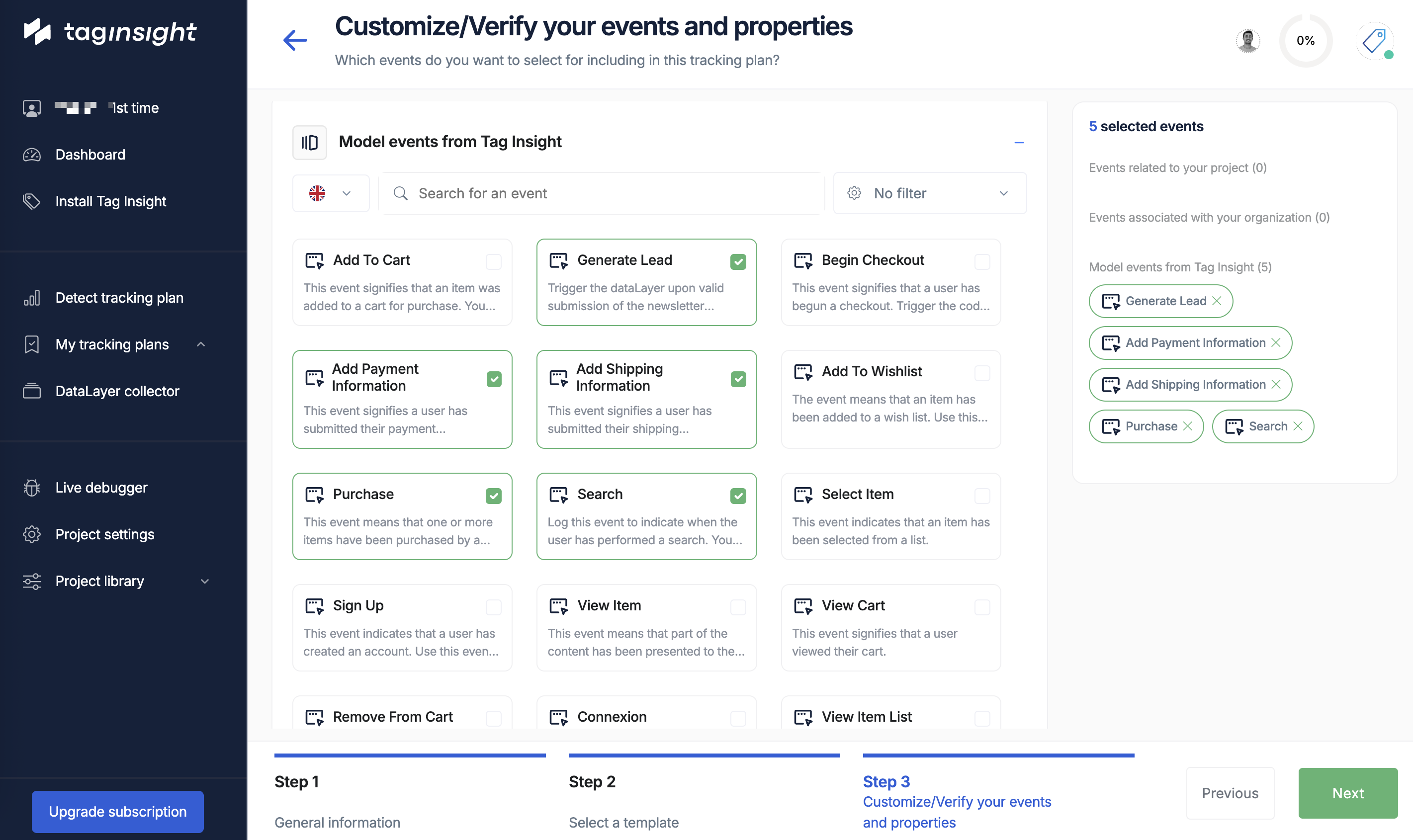
Event structure
Each event contains:- Event Name: The identifier (e.g.,
page_view,add_to_cart) - Description: What this event represents
- Variables: The data points captured with this event
- Trigger Conditions: When this event should fire
Common event types
- Page views
- E-commerce
- User actions
Adding events to your tracking plan
Method 1: Manual creation
1
Click add event
In your tracking plan, click + Add Event
2
Fill event details
- Event Name: Use snake_case (e.g.,
product_view) - Event Label: Human-readable name
- Description: Detailed explanation of when this fires
- Category: Group related events together
3
Add variables
For each variable in the event:
- Click + Add Variable
- Set variable name, type, and validation rules
4
Save event
Review and save your event configuration
Method 2: Using templates
Tag Insight provides pre-built templates for common implementations:Google Analytics 4
Standard GA4 e-commerce and engagement events
Enhanced e-commerce
Complete e-commerce tracking setup
Media & publishing
Content engagement and reading time events
SaaS applications
User lifecycle and feature usage events
- Select Templates when creating a tracking plan
- Choose your template
- Customize events and variables as needed
- Save your tracking plan
Method 3: AI-powered import
Use the Detect Tracking Plan feature to automatically discover existing events:This method requires the Tag Insight pixel to be installed on your site.
1
Install pixel
Ensure the Tag Insight pixel is active on your site
2
Start detection
Click Detect Tracking Plan and set duration
3
Browse your site
Navigate through your site to trigger events
4
Import results
Review detected events and import selected ones
Configuring variables
Variables are the individual data points within each event.Variable properties
For each variable, configure:Basic properties
Basic properties
- Name: The variable key (e.g.,
product_id) - Display Name: Human-readable label
- Description: What this variable represents
- Data Type: String, Number, Boolean, Object, or Array
Validation rules
Validation rules
- Required/Optional: Whether the variable must be present
- Format: Regex patterns for validation
- Allowed Values: Specific values or ranges
- Default Value: What to use if not provided
Advanced settings
Advanced settings
- Anonymize: Mask sensitive data
- Transform: Apply transformations before validation
- Custom Validation: JavaScript validation functions
Variable types and validation
- String
- Number
- Boolean
- Object
Organization features
Event library
Build a reusable library of events:1
Create library events
Define common events at the organization level
2
Set standards
Establish naming conventions and required variables
3
Import to projects
Use library events across multiple projects
4
Maintain Consistency
Updates to library events can cascade to projects
Version control
Tag Insight automatically versions your tracking plans:- Auto-save: Changes are saved automatically
- Version History: View and restore previous versions
- Change Tracking: See who made what changes when
- Comparison: Compare versions side-by-side
Best practices
Naming conventions
Event Names
Event Names
- Use snake_case:
product_view, notProductView - Be descriptive:
checkout_step_completed, notstep - Include context:
video_play_started, not justplay
Variable Names
Variable Names
- Consistent prefixes:
page_,user_,product_ - Clear purpose:
total_price_usd, notamount - Avoid abbreviations:
quantity, notqty
Documentation
Always document:- When: Exact conditions that trigger the event
- Where: Which pages or features fire the event
- Why: Business purpose of tracking this data
- Examples: Sample data layer outputs
Progressive enhancement
1
Start Simple
Begin with critical business events only
2
Validate
Ensure basic tracking works perfectly
3
Expand Gradually
Add more detailed tracking over time
4
Review Regularly
Audit and clean up unused events quarterly
Importing existing plans
From Excel/CSV
1
Download Template
Get our Excel template from the import dialog
2
Fill Template
Add your events and variables following the format
3
Upload File
Drag and drop or browse to select your file
4
Map Columns
Match your columns to Tag Insight fields
5
Review and Import
Preview the import and confirm
From other tools
Tag Insight supports importing from:- Google Sheets
- Segment Protocols
- Adobe Data Layer Manager
- Custom JSON formats
Contact support for help migrating from other tracking plan tools.
Validation and testing
Pre-implementation validation
Before implementing:- Review all events and variables
- Check for naming consistency
- Verify validation rules make sense
- Test with sample data
Post-implementation testing
After implementation:- Use the Chrome extension to capture real data
- Compare against your tracking plan
- Run test audits
- Adjust validation rules as needed
Common patterns
E-commerce tracking plan
Content site tracking plan
Next steps
Import Methods
Learn about automated import options
Variable Configuration
Deep dive into variable setup and validation
Setting Up Audits
Start monitoring your tracking plan
Best Practices
Learn tracking plan design best practices