

Overview
The Tag Insight Chrome Extension is a powerful tool that helps you capture, inspect, and debug tracking implementations directly from your browser. It’s an essential companion for anyone working with Tag Insight.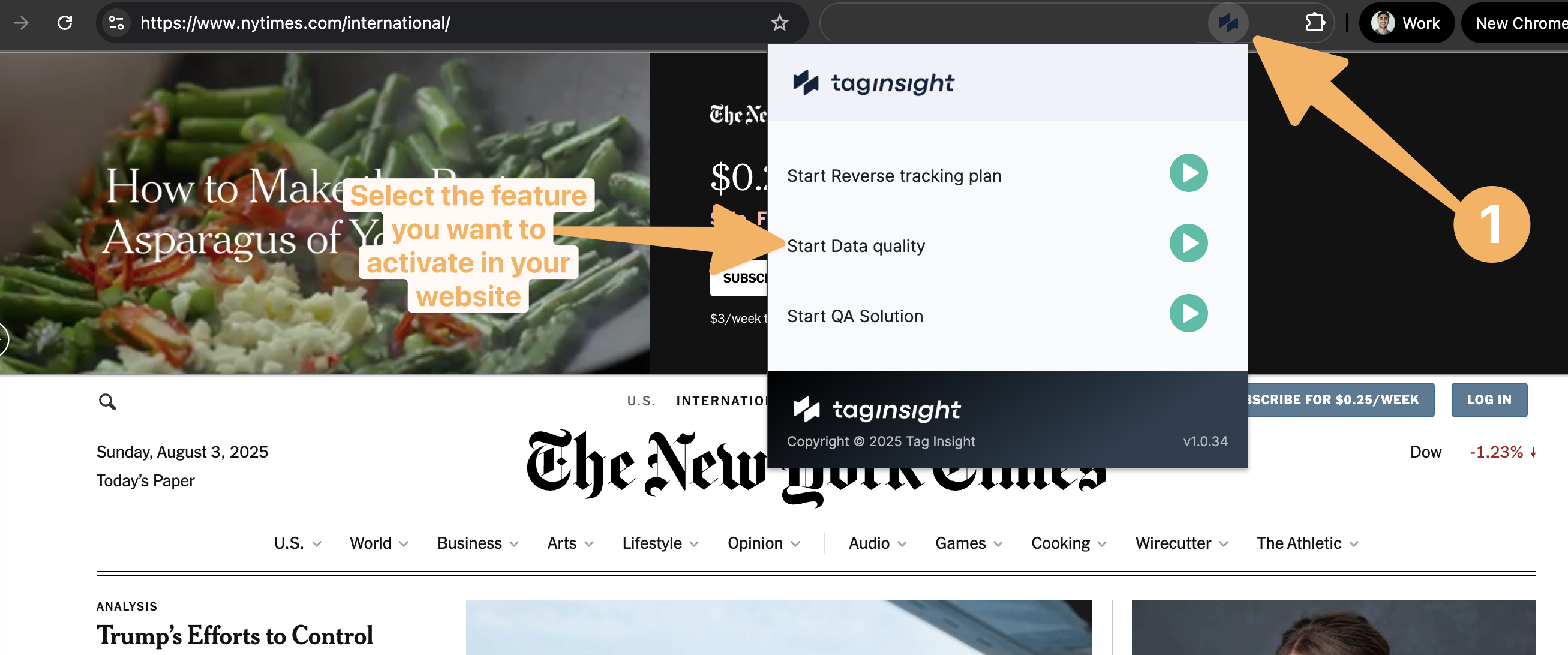
Installation
1
Visit Chrome Web Store
Search for “Tag Insight” in the Chrome Web Store or use the direct link from your dashboard
2
Add to Chrome
Click Add to Chrome and confirm the installation
3
Pin the Extension
Click the puzzle icon in Chrome and pin Tag Insight for easy access
4
Log In
Click the extension icon and log in with your Tag Insight credentials
Features Overview
Live Debugger
Real-time data layer inspection and debugging
Event Capture
Capture events as you browse for import
Pixel Detection
Verify Tag Insight pixel installation
Data Export
Export captured data for analysis
Live Debugging
The extension’s live debugger shows all tracking events in real-time.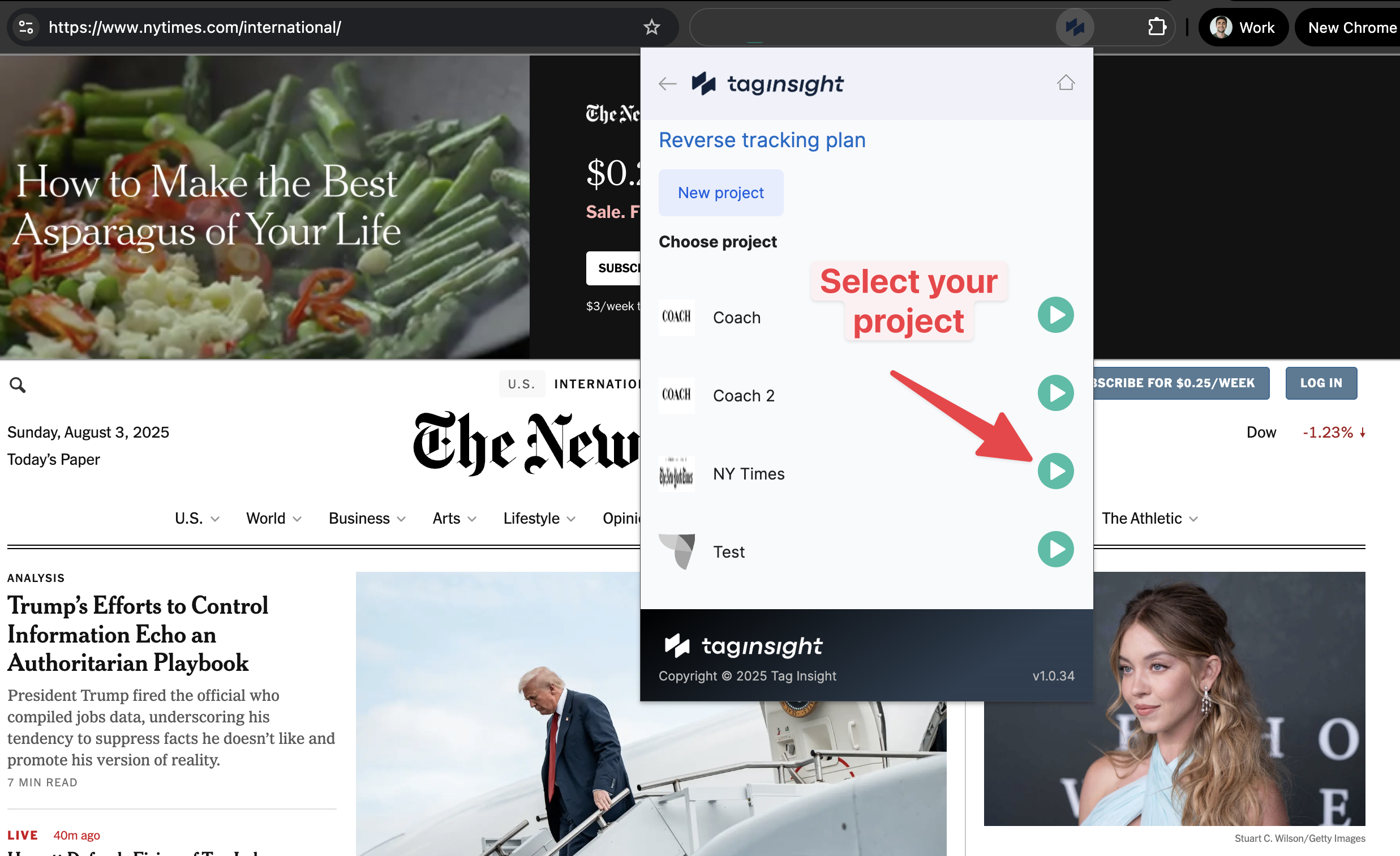
Debugger Interface
- Event Stream
- Event Details
- Filters
View all events as they fire:
- Event name and timestamp
- Variable count
- Page URL
- Event status (valid/invalid)
Debug Information
For each event, the extension shows:Reverse Tracking Plan
Use the extension to capture your existing implementation and create a tracking plan.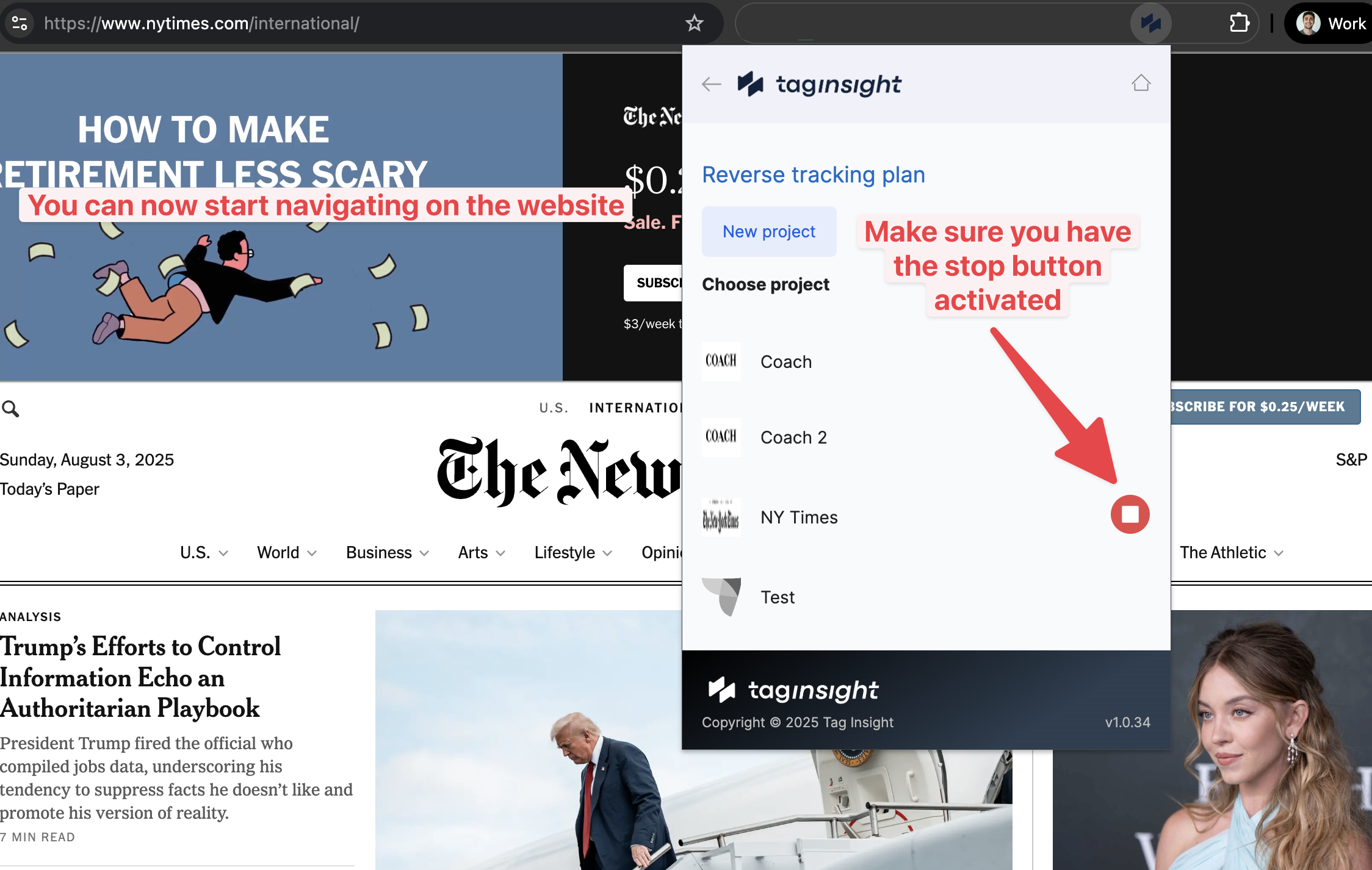
Capture Process
1
Start Capture Mode
Click Start Capture in the extension
2
Browse Your Site
Navigate through key user journeys:
- Product browsing
- Add to cart
- Checkout flow
- Account actions
3
Review Captured Events
See all unique events captured with:
- Event frequency
- Variable variations
- Sample values
4
Select Events to Import
Choose which events to include in your tracking plan
5
Import to Project
Send selected events directly to your Tag Insight project
Capture Settings
Configure capture behavior:- Capture Duration: Set time limit or manual stop
- Event Deduplication: Merge similar events
- Variable Sampling: Number of samples to keep
- Page Filtering: Include/exclude URLs
Pixel Verification
The extension automatically detects Tag Insight pixel installation.Pixel Status Indicators
- ✅ Active
- ⚠️ Warning
- ❌ Not Found
- Pixel detected and working
- Shows project name
- Displays configuration
- Real-time event count
Pixel Information
When a pixel is detected, view:Quality Assurance Features
Validation Testing
Test your tracking against the tracking plan:1
Load Tracking Plan
Select active tracking plan from dropdown
2
Enable Validation
Toggle Live Validation mode
3
Browse Site
Navigate and trigger events
4
Review Results
See real-time validation results
Validation Indicators
- 🟢 Valid: Event matches tracking plan perfectly
- 🟡 Warning: Minor issues (optional variables missing)
- 🔴 Error: Critical issues (required variables missing, wrong types)
- ⚪ Unknown: Event not in tracking plan
Advanced Features
Custom Data Layers
Configure the extension for custom implementations:Export Capabilities
Export captured data in multiple formats:- JSON: Complete data structure
- CSV: Flattened for spreadsheets
- Tag Insight Format: Direct import ready
- Documentation: Markdown format
Network Monitoring
Monitor tracking requests:- GA4 measurement protocol calls
- Third-party pixels
- Server-side calls
- Performance metrics
Use Cases
Development Workflow
1
Pre-Implementation
Review existing tracking with capture mode
2
Implementation
Validate new tracking in real-time
3
Testing
Verify all events fire correctly
4
Debugging
Identify and fix tracking issues
QA process
- Load Test Plan: Import test scenarios
- Execute Tests: Follow test scripts
- Capture Results: Document all events
- Compare: Match against expected results
- Report: Export findings
Troubleshooting
Common debugging scenarios:Missing Events
Missing Events
- Check event triggers
- Verify data layer pushes
- Look for JavaScript errors
- Test in incognito mode
Wrong Values
Wrong Values
- Inspect data sources
- Check transformations
- Verify timing issues
- Review data types
Duplicate Events
Duplicate Events
- Check for multiple triggers
- Review GTM/TMS setup
- Look for race conditions
- Verify page lifecycle
Keyboard Shortcuts
Boost productivity with shortcuts:Settings and Preferences
Extension Options
Configure the extension behavior:- Auto-Connect: Connect to last project automatically
- Notification: Show alerts for validation errors
- Storage: Local event history duration
- Performance: Sampling for high-traffic sites
Privacy Settings
- Data Storage: Events stored locally only
- Auto-Clear: Clear data on browser close
- Sensitive Data: Auto-mask PII fields
- Incognito: Disable in private browsing
Integration with Tag Insight
Seamless Workflow
The extension integrates directly with your Tag Insight projects:- Project Selection: Choose active project from dropdown
- Live Sync: Changes reflected immediately
- Import Events: Send captured events to tracking plan
- Validation Rules: Use project’s validation settings
Collaborative Features
- Share capture sessions with team
- Export findings for review
- Comment on specific events
- Create tickets from issues
Tips and Tricks
Power User Tips
Batch Operations
Select multiple events with Shift+Click for bulk actions
Quick Filters
Use
/ to quickly filter events by nameEvent Comparison
Compare two events side-by-side with Ctrl+Click
Auto-Documentation
Generate documentation from captured events
Performance Optimization
For high-traffic sites:- Enable sampling mode
- Filter by specific events
- Limit capture duration
- Use page filters
- Clear old data regularly
Troubleshooting
Extension Not Working
Extension Not Working
- Check Chrome version (88+ required)
- Verify permissions granted
- Try reinstalling extension
- Clear extension storage
Can't Connect to Project
Can't Connect to Project
- Verify login credentials
- Check network connection
- Confirm project access
- Try logging out and back in
Events Not Capturing
Events Not Capturing
- Check capture is started
- Verify data layer name
- Look for content security policy blocks
- Test in regular (not incognito) mode
Next steps
Import Methods
Learn about importing captured events
Live Debugger
Explore the web-based debugger
Variable Configuration
Set up validation for captured events
Best Practices
Optimize your tracking setup