

Overview
The Live Debugger is a powerful web-based tool within Tag Insight that allows you to monitor and debug tracking implementations in real-time. Unlike the Chrome extension, the Live Debugger runs directly in your Tag Insight dashboard, providing comprehensive insights into your tracking data flow.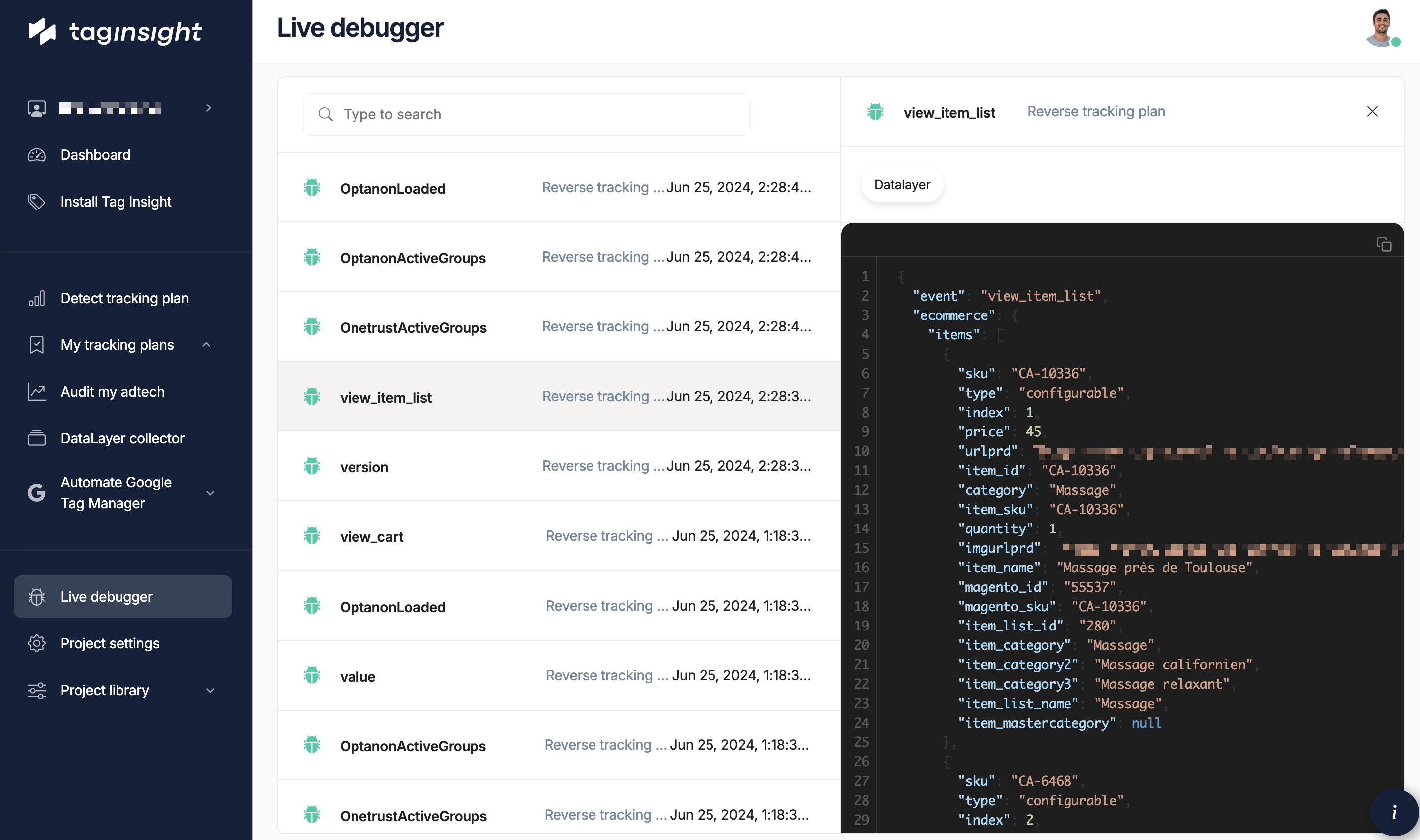
Based on the Tag Insight menu structure, the Live Debugger is accessible directly from your project dashboard alongside other monitoring tools.
Accessing the Live Debugger
1
Navigate to Your Project
Log into Tag Insight and select your project
2
Click Live Debugger
Find “Live debugger” in the project menu
3
Start Debugging Session
The debugger automatically connects to your site’s tracking
Key features
Real-Time Event Stream
Watch events fire as users interact with your site
Data Layer Inspector
Examine complete data layer contents
Validation Status
See immediate validation against your tracking plan
Filter & Search
Find specific events or issues quickly
Interface Overview
Event stream Panel
The main panel shows all tracking events in real-time:Event details Panel
Click any event to see detailed information:- Data Layer
- Validation Results
- Technical Info
Debugging Features
Live Validation
The debugger validates events against your tracking plan in real-time:- Green checkmark (✅): Event passes all validation rules
- Yellow warning (⚠️): Minor issues or missing optional data
- Red error (❌): Critical validation failures
Filter Options
Focus on specific issues:By Event Type
By Event Type
- Filter by specific events (e.g., only “purchase” events)
- Show only e-commerce events
- Hide page_view events for clarity
By Status
By Status
- Show only errors
- Show only warnings
- Show successful events
- Show unknown events
By Page
By Page
- Filter by URL pattern
- Focus on specific sections
- Exclude admin pages
By Time
By Time
- Last 5 minutes
- Last hour
- Custom time range
Search Functionality
Powerful search across all event data:Advanced Features
Session Replay
Link events to specific user sessions:1
Select Session Mode
Toggle from “All Events” to “Session View”
2
Choose Session
Select a specific session ID or user
3
View Journey
See complete event sequence for that session
4
Identify Issues
Spot where tracking breaks in user journey
Compare Mode
Compare expected vs actual data:Export Capabilities
Export debugging sessions for analysis:- JSON Export: Complete event data
- CSV Export: Simplified tabular format
- Share Link: Send session to teammates
- Create Report: Generate debugging report
Use Cases
During Development
New Feature Testing
Verify tracking for new features before release
Integration Testing
Ensure third-party tools integrate correctly
Production Monitoring
Issue Investigation
Debug reported tracking problems
Performance Monitoring
Monitor tracking performance metrics
Integration with Other Tools
Chrome extension
The Live Debugger complements the Chrome extension:- Chrome Extension: Local debugging, single user
- Live Debugger: All traffic, multiple users
- Both: Can be used simultaneously
Audit Reports
Link from audit reports to live debugging:- Find issue in audit report
- Click “Debug Live”
- Opens Live Debugger filtered to that issue
- See real-time occurrences
Data layer Collector
Switch between tools seamlessly:- Live Debugger: Real-time monitoring
- Data Layer Collector: Historical analysis
- Use both: Complete picture of tracking health
Best practices
Effective Debugging
1
Start Broad
Begin with all events to understand context
2
Filter Down
Apply filters to focus on specific issues
3
Examine Patterns
Look for commonalities in failures
4
Test Solutions
Make changes and verify in real-time
Performance Tips
For high-traffic sites:- Use Sampling: Enable sampling mode for performance
- Apply Filters Early: Reduce data volume
- Focus Sessions: Debug specific users/sessions
- Clear Old Data: Regularly clear debugging cache
Common Debugging Scenarios
Scenario 1: Missing Purchase Events
Scenario 2: Malformed Data
Scenario 3: Timing Issues
Keyboard Shortcuts
Speed up debugging with shortcuts:Troubleshooting
No Events Showing
No Events Showing
- Verify pixel is installed and active
- Check browser ad blockers
- Confirm project selection
- Try refreshing the debugger
High Latency
High Latency
- Check network connection
- Enable sampling mode
- Clear debugging cache
- Contact support if persistent
Missing Validation
Missing Validation
- Ensure tracking plan is configured
- Check event names match exactly
- Verify validation rules are set
- Refresh tracking plan cache
Next steps
Chrome Extension
Use for local debugging
Data Layer Collector
Analyze historical data
Debugging Guide
Advanced debugging techniques
Setting Up Audits
Configure automated monitoring