

Overview
Audits are the heart of Tag Insight’s monitoring capabilities. They continuously compare your live tracking implementation against your tracking plan, alerting you to any discrepancies or issues.How audits work
Unlike traditional tools that use robots, Tag Insight audits analyze real user traffic, providing comprehensive coverage of all user journeys.
The audit process
1
Traffic Collection
The Tag Insight pixel captures data layer events from real user traffic
2
Validation
Each event is validated against your tracking plan rules
3
Issue Detection
Any discrepancies are identified and categorized
4
Alert Generation
Notifications are sent based on your alert configuration
5
Reporting
Detailed reports show all issues found during the audit period
Creating your first audit
Quick setup
1
Navigate to Audits
From your project, go to Monitoring > Audits
2
Click New Audit
Select + New Audit to configure your audit
3
Basic Configuration
- Name: “Daily Production Audit”
- Tracking Plan: Select your active tracking plan
- Schedule: Daily at 9:00 AM
4
Save and Activate
Review settings and activate your audit
Audit configuration options
Schedule types
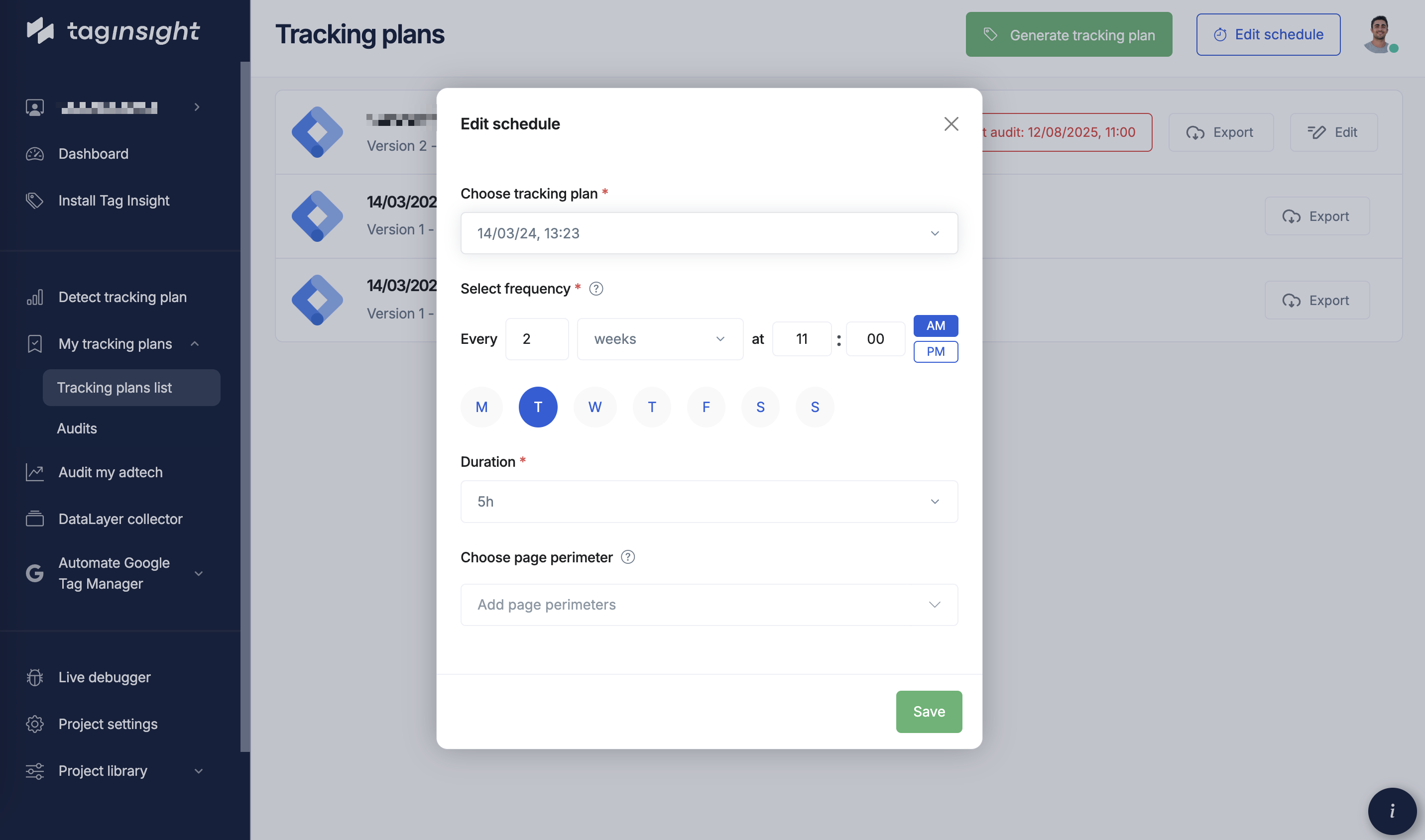
- Continuous
- Scheduled
- On-Demand
Real-time monitoring of all trafficBest for:
- Production environments
- Critical tracking
- Immediate issue detection
Frequency options
For scheduled audits, choose:- Hourly: Every hour on the hour
- Daily: Once per day at specified time
- Weekly: Specific days and times
- Monthly: Specific date and time
- Custom: Cron expression for complex schedules
Scope configuration
Define what to audit:Full Tracking Plan
Full Tracking Plan
Monitor all events and variables in your tracking plan
Specific Events
Specific Events
Focus on critical events only
Event Categories
Event Categories
Monitor events by category
URL Patterns
URL Patterns
Audit specific pages or sections
Sampling strategies
Choose how much traffic to analyze:Sampling options
100% Traffic
Analyze all events
- Most comprehensive
- Higher cost
- Best for critical tracking
Percentage Sampling
Analyze a percentage
- Cost-effective
- Statistically significant
- Good for high-traffic sites
Event Sampling
Sample by event count
- Fixed number of events
- Predictable costs
- Good for testing
Smart Sampling
AI-optimized sampling
- Focuses on anomalies
- Efficient coverage
- Best value
Sampling configuration
Alert configuration
Alert channels
1
Email Alerts
Default notification method
- Instant notifications
- Detailed issue reports
- Multiple recipients
2
Slack Integration
Real-time team notifications
- Channel-specific alerts
- Severity-based routing
- Interactive responses
Alert rules
Configure when to send alerts:- Threshold-Based
- Event-Specific
- Pattern-Based
Alert severity levels
- Critical: Immediate attention required (purchase tracking broken)
- High: Important issues (key events affected)
- Medium: Should be addressed soon (non-critical events)
- Low: Informational (minor validation issues)
Advanced audit features
Exclusion rules
Prevent false positives by excluding:URL Exclusions
URL Exclusions
User Agent Exclusions
User Agent Exclusions
IP Exclusions
IP Exclusions
Custom validation rules
Add business-specific validation:Baseline comparison
Compare against historical data:Audit reports
Report components
Each audit report includes:-
Summary Statistics
- Total events analyzed
- Error rate
- Top issues
- Trend analysis
-
Issue Details
- Specific errors found
- Affected pages/events
- Sample data layers
- Fix recommendations
-
Performance Metrics
- Audit duration
- Events per second
- Coverage statistics
Reading audit reports
Focus on the “Critical Issues” section first - these have the highest business impact.
Issue types
- Missing Events: Expected events not firing
- Missing Variables: Required variables absent
- Invalid Values: Values don’t match validation rules
- Type Mismatches: Wrong data types (string vs number)
- Pattern Violations: Values don’t match expected patterns
Best practices
Audit strategy
1
Start with Critical Events
Begin monitoring purchase and key conversion events
2
Expand Coverage
Gradually add more events as confidence grows
3
Optimize Sampling
Adjust sampling based on traffic and budget
4
Refine Alerts
Tune alert rules to reduce noise
Recommended configurations
E-commerce sites
Media sites
SaaS applications
Troubleshooting
Common issues
No Data in Audit Reports
No Data in Audit Reports
- Verify pixel is installed and active
- Check audit schedule hasn’t started yet
- Ensure traffic is reaching monitored pages
Too Many False Positives
Too Many False Positives
- Review and update validation rules
- Add appropriate exclusions
- Consider optional vs required variables
Missing Critical Issues
Missing Critical Issues
- Increase sampling rate
- Verify tracking plan is complete
- Check scope configuration
Next steps
Configure Alerts
Set up alert rules and notifications
Understand Reports
Learn to interpret audit reports
Data Layer Collector
Set up data layer logging
Best Practices
Optimize your audit configuration