

Overview
Audit reports are like health checkups for your website tracking. They tell you what’s working, what’s broken, and what needs attention. Think of them as your tracking quality report card.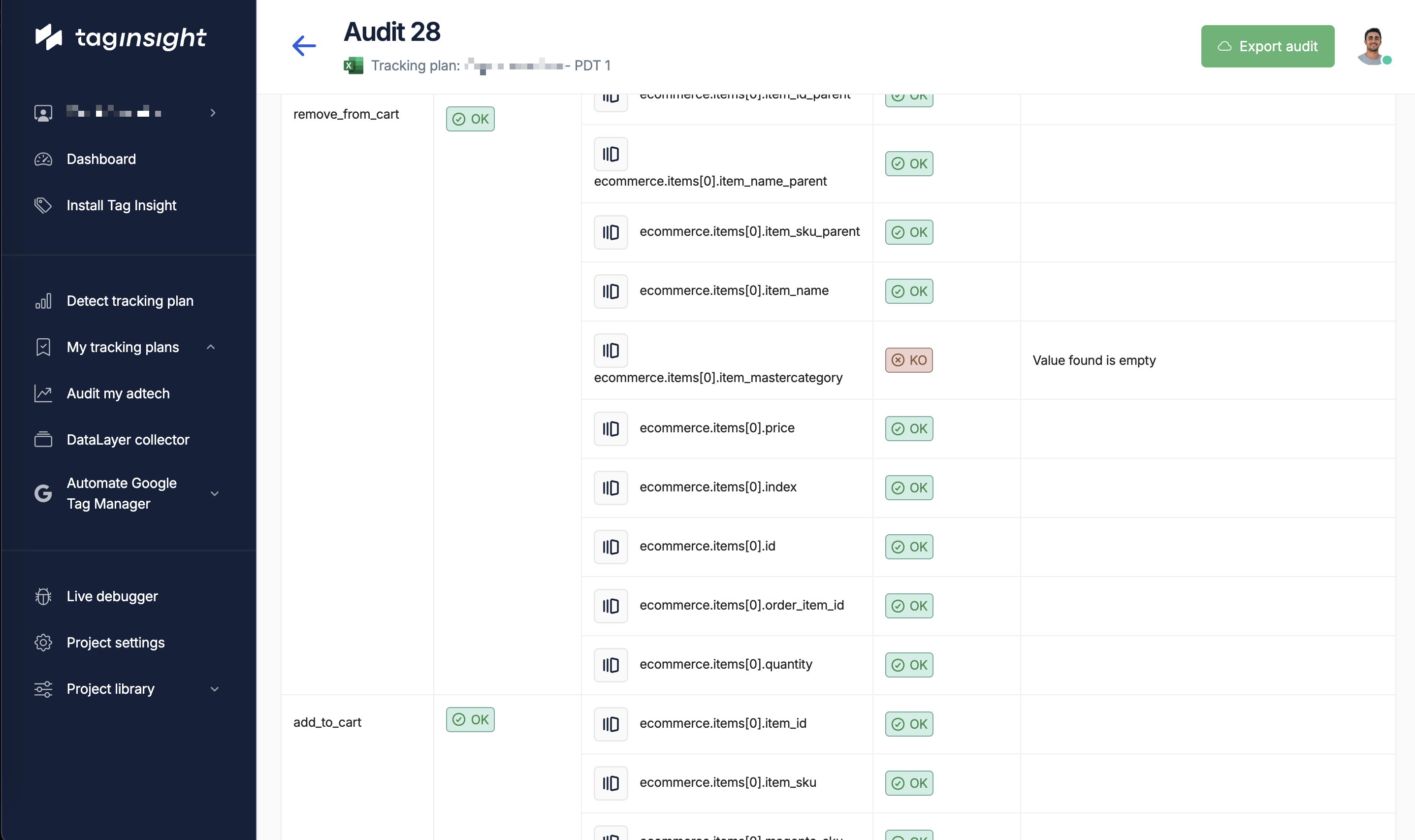
Reading your report
The summary section
The summary gives you a quick snapshot - like checking your dashboard before a long drive.
- Overall health score: A percentage showing how well your tracking is working
- Issue counts: How many problems were found
- Time period: When the audit ran
- Events analyzed: How much data was checked
Understanding issue severity
Issues are grouped by importance:- Critical 🔴
- Warning 🟡
- Information 🔵
Must fix immediately
- Purchase tracking broken
- No data being collected
- Major data errors
Common issues explained
Missing events
What it means: Expected tracking isn’t happening Example: “Purchase event missing on order confirmation page” Why it matters:- Can’t measure conversions
- Revenue reports are wrong
- Marketing ROI unknown
Wrong data types
What it means: Information is in the wrong format Example: “Price sent as text ($29.99) instead of number (29.99)” Why it matters:- Can’t calculate totals
- Averages won’t work
- Reports show errors
Missing information
What it means: Some details aren’t being collected Example: “Order ID missing from 15% of purchases” Why it matters:- Can’t track individual orders
- Duplicate counting possible
- Customer service impact
Report sections
1. Issue list
A detailed list of every problem found:- What’s wrong
- Where it’s happening
- How often it occurs
- When it started
2. Affected pages
Shows which parts of your site have issues:- Homepage ✅ All good
- Product pages ⚠️ Minor issues
- Checkout ❌ Critical problems
3. Trend graphs
Visual charts showing:- Is tracking getting better or worse?
- When did problems start?
- Are fixes working?
4. Data samples
Real examples of the problems:- What you expected to see
- What actually happened
- The difference explained
Understanding metrics
Coverage score
How complete your tracking is:Event coverage
What: Percentage of expected events working
- Excellent: 99-100%
- Good: 95-98%
- Needs work: Below 95%
Data completeness
What: Percentage of required information present
- Excellent: 100%
- Good: 98-99%
- Needs work: Below 98%
Quality indicators
- Accuracy: Is the data correct?
- Consistency: Is it the same everywhere?
- Timeliness: Is it captured quickly?
- Completeness: Is anything missing?
Taking action
Priority guide
How to decide what to fix first:Who does what
Marketing team:- Review reports weekly
- Prioritize which issues matter most
- Communicate impact to stakeholders
- Track improvement over time
- Fix the identified issues
- Test changes before deploying
- Confirm fixes are working
- Prevent issues from returning
Creating action items
For each issue:- Understand the business impact
- Assign to right person
- Set realistic deadline
- Verify when complete
Report features
Filtering your view
Focus on what matters to you:- Show only critical issues
- Filter by specific pages
- Look at certain events
- View recent problems only
Sharing reports
- PDF export
- Excel download
- Email summary
Perfect for:
- Executive summaries
- Monthly reviews
- Stakeholder updates
- Archive records
Reading trends
Historical view
Compare your tracking health over time:- Is it improving or declining?
- When did issues start?
- Are problems seasonal?
- What’s the impact of changes?
Best practices
Daily routine
1
Morning check
Quick glance at overnight health score
2
Review criticals
Any new critical issues to address?
3
Communicate
Alert team to urgent problems
4
Track progress
Are yesterday’s fixes working?
Weekly deep dive
- Full report review
- Trend analysis
- Team meeting to discuss
- Plan fixes for next week
- Update documentation
Monthly summary
- Overall health trends
- Major improvements
- Persistent issues
- Strategic planning
- Stakeholder update
Common questions
How often should I check reports?
How often should I check reports?
Daily for critical issues, weekly for full review. Set up email alerts for immediate problems.
What's a good health score?
What's a good health score?
Above 98% is excellent. 95-98% is acceptable. Below 95% needs attention. Below 90% is critical.
Can I customize what's checked?
Can I customize what's checked?
Yes! Work with your team to define what’s important for your business and adjust audit settings.
How long are reports saved?
How long are reports saved?
Reports are kept for 90 days. Download important ones for longer storage.
Getting help
Understanding specific issues
If you don’t understand an issue:- Check the explanation in the report
- Look at the data samples
- Ask your technical team
- Contact Tag Insight support
Making improvements
To improve your tracking health:- Fix critical issues first
- Set up preventive alerts
- Regular team reviews
- Document your setup
- Test before major changes
Next steps
Set up alerts
Get notified of problems immediately
View live data
See your tracking in real-time
Best practices
Improve your tracking setup
Get support
Help interpreting your reports