

Overview
The Data Layer Collector is like a recording device for your website tracking. It captures all the tracking data from specific pages so you can see exactly what information is being collected from real visitors.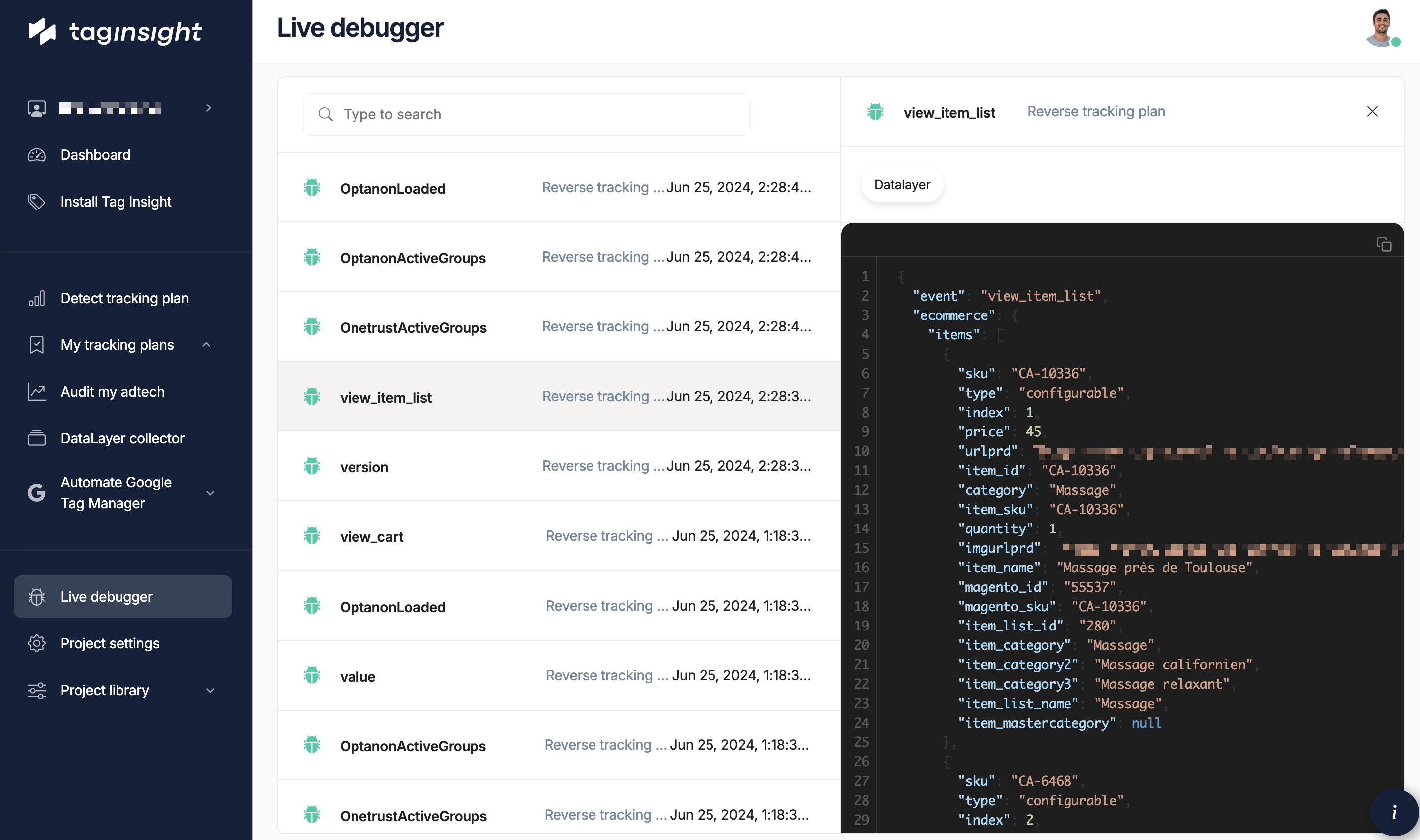
This feature is especially useful for understanding purchase data without having to make test purchases yourself.
Why use the data collector?
Save time & money
Analyze real purchases without making test transactions
Find issues faster
See exactly what data is being sent
Understand patterns
Learn from real customer behavior
How it works
Think of it as a security camera for your tracking:- You tell it which pages to watch
- It records all tracking activity on those pages
- You can review the recordings later
- Find and fix any problems you spot
Setting up collection
Quick start
1
Go to data collector
In Tag Insight, navigate to Monitoring > Data Layer Collector
2
Create new collection
Click + New Collection button
3
Configure what to collect
- Name: Give it a clear name like “Checkout Page Monitor”
- Pages: Which pages to monitor (like order confirmation)
- Duration: How long to collect (usually 24 hours)
- Limit: Maximum events to store (like 1000)
4
Start collecting
Turn it on and let it gather real data
What to monitor
Focus on your most important pages:- Order confirmation pages - See what purchase data looks like
- Sign-up forms - Check registration information
- Key conversion pages - Verify important actions
- Error pages - Understand what went wrong
Common uses
Understanding purchases
Instead of making test purchases, see real ones:- What you'll see
- Why it helps
- Common findings
- Order details (ID, total, items)
- Customer information (type, location)
- Payment methods used
- Any errors or issues
Debugging forms
See what happens when people submit forms:- Which fields are filled out
- What causes errors
- How long submissions take
- Success vs failure rates
Finding patterns
Discover trends in your data:- Most common purchase amounts
- Popular product combinations
- Peak activity times
- Unusual behaviors
Analyzing collected data
Viewing your data
Once collected, you can:- Search: Find specific values or events
- Filter: Focus on certain time periods
- Sort: Organize by different criteria
- Export: Download for deeper analysis
What to look for
Missing information
Missing information
Check if important data is absent:
- Order IDs on purchase pages
- Product details in cart events
- User IDs for logged-in customers
Wrong formats
Wrong formats
Spot formatting issues:
- Prices with currency symbols
- Dates in different formats
- IDs that don’t match patterns
Unexpected values
Unexpected values
Find outliers:
- Extremely high or low prices
- Unusual product combinations
- Error messages you didn’t expect
Best practices
Smart collection
1
Choose critical pages
Focus on pages that matter most:
- Where money changes hands
- Where customers convert
- Where problems often occur
2
Set reasonable limits
- Time: 24-48 hours usually enough
- Events: Based on your traffic
- Storage: Don’t collect more than needed
3
Review regularly
- Check collected data weekly
- Look for new issues
- Update what you monitor
4
Protect privacy
- Don’t collect sensitive data
- Use anonymization features
- Follow privacy laws
Collection tips
For high-traffic sites:- Collect a sample (like 10% of visitors)
- Shorter time periods
- Focus on specific issues
- Collect everything
- Longer time periods
- Set up alerts
Industry examples
E-commerce
Monitor checkout pages to understand:- What customers actually buy
- Payment preferences
- Cart abandonment reasons
- Discount code usage
Media sites
Track content engagement:- Which articles get read
- Video completion rates
- Subscription conversions
- Share patterns
B2B websites
Analyze lead generation:- Form completion rates
- Information quality
- Source tracking
- Demo requests
Privacy and security
Automatic protection
Tag Insight automatically protects sensitive data:- Email addresses are partially hidden
- Credit card numbers are masked
- Personal details are anonymized
- IP addresses are truncated
Your responsibilities
- Only collect what you need
- Follow your privacy policy
- Delete data when done
- Limit access to authorized users
Troubleshooting
No data appearing
No data appearing
Check:
- Is Tag Insight installed on those pages?
- Are the page URLs correct?
- Is the collection still active?
- Are people visiting those pages?
Too much data
Too much data
Try:
- Collecting a smaller sample
- Focusing on specific pages
- Shorter collection periods
- Filtering specific events only
Missing expected information
Missing expected information
Verify:
- The data exists on the page
- It’s being tracked correctly
- No conditions preventing capture
- Different scenarios and users
Using your findings
Create action items
When you find issues:- Document what’s wrong
- Show examples from real data
- Explain the business impact
- Share with your tech team
Verify fixes
After changes are made:- Set up new collection
- Monitor the same pages
- Confirm issues are resolved
- Document the improvement
Share insights
Use collected data to:- Show stakeholders real examples
- Justify tracking improvements
- Train team members
- Build better processes
Export and reporting
Export options
- Excel/CSV
- Raw data
Best for:
- Creating reports
- Sharing with non-technical teams
- Building charts
- Further analysis
What to include in reports
- Summary of findings
- Specific examples
- Business impact
- Recommended fixes
- Timeline for resolution
Working with your team
For marketing
- Identify what data you need
- Explain why it matters
- Review findings together
- Prioritize fixes
For developers
- Share specific examples
- Provide clear reproduction steps
- Test fixes together
- Confirm resolution
Next steps
Set up monitoring
Configure automatic tracking checks
Read audit reports
Understand your tracking health
Configure alerts
Get notified of issues
View live data
See tracking in real-time