

Overview
Tag Insight monitors your tracking implementation through scheduled and continuous audits. When issues are detected, you can review them in the audit reports and export them for team distribution.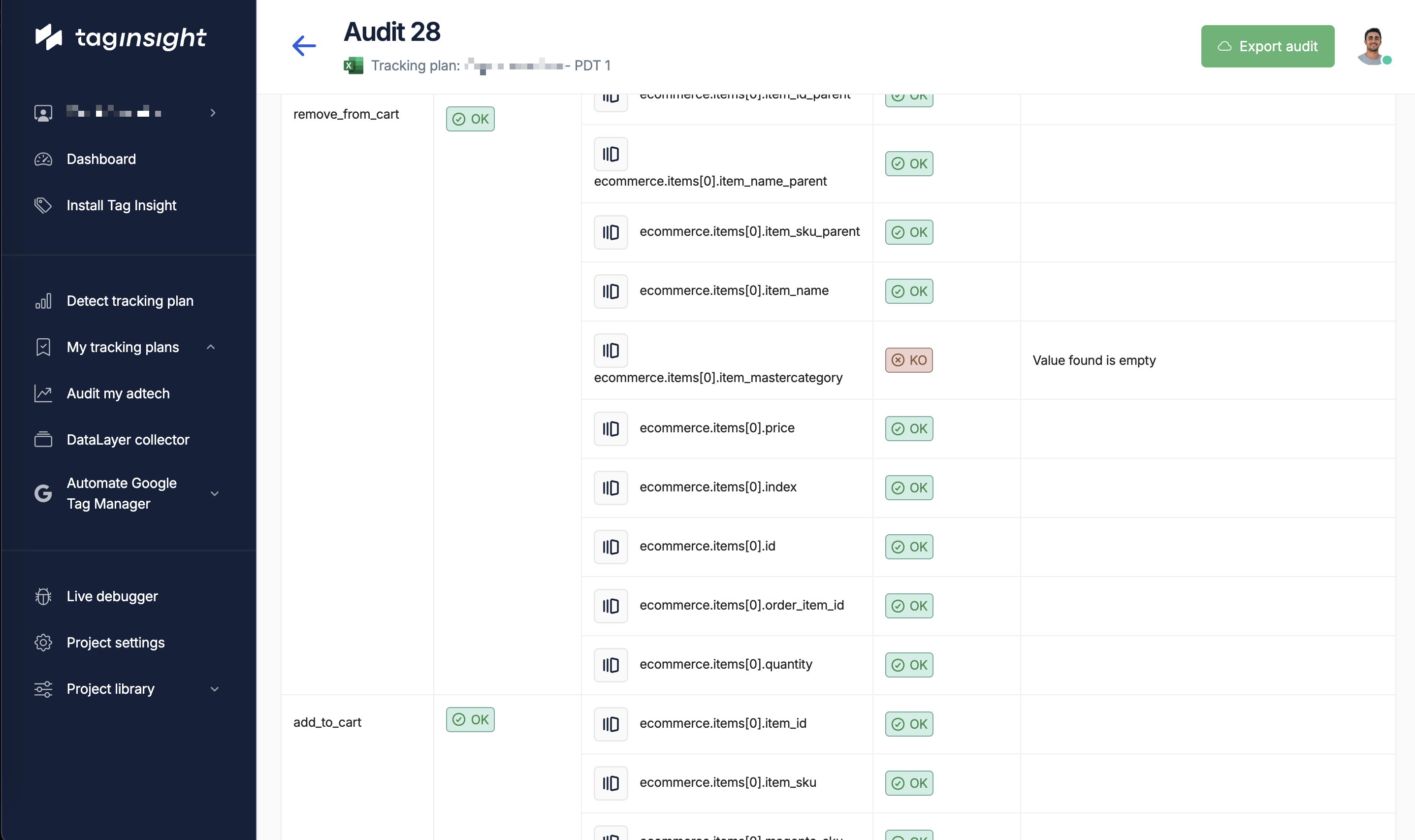
Tag Insight focuses on comprehensive audit reports that can be exported and shared with your team. Check the audit reports section for detailed information on monitoring results.
How alerts work
Alert generation process
1
Audit execution
Scheduled or continuous audits analyze your tracking data
2
Issue detection
The system compares live data against your tracking plan
3
Alert triggering
When discrepancies are found, alerts are generated
4
Email notification
Alert emails are sent to designated recipients
Alert types
Critical alerts
These require immediate attention:- Missing Required Events: Key events (like purchases) not firing
- Transaction Tracking Broken: E-commerce tracking failures
- Complete Event Failure: Events that completely stop working
- Data Type Mismatches: Critical variables with wrong formats
Warning alerts
Important but not immediately critical:- Missing Optional Variables: Non-required data points absent
- Value Format Issues: Data not matching expected patterns
- New Unknown Events: Unplanned events detected
- Performance Degradation: Slow-loading tracking
Informational alerts
For awareness and tracking:- Audit Completion: Successful audit reports
- Trend Changes: Significant changes in event volumes
- New Variables Detected: Additional data being sent
- Configuration Updates: Changes to tracking plans
Email notifications
Email content
Alert emails include:Email recipients
Currently, alerts are sent to:- Project editors
- Users who configured the audit
- Additional emails specified during audit setup
Alert severity levels
Understanding severity
- 🔴 Critical
- 🟡 Warning
- 🔵 Info
Immediate action required
- Revenue-impacting issues
- Complete tracking failures
- Legal/compliance problems
Current alert features
What you can do now
- Receive Email Alerts: Get notified of tracking issues
- View in Dashboard: Access detailed reports
- Export Reports: Download full audit results
- Share with Team: Forward alerts to stakeholders
Alert timing
Based on your audit configuration:- Continuous Audits: Near real-time alerts (5-15 minute delay)
- Scheduled Audits: Alerts sent after audit completion
- On-Demand Audits: Immediate results upon completion
Best practices
Managing alert fatigue
Focus on critical events
Focus on critical events
Start by monitoring only business-critical events like purchases and key conversions
Refine validation rules
Refine validation rules
Make optional variables truly optional to reduce false positives
Use appropriate sampling
Use appropriate sampling
For high-traffic sites, sampling can reduce noise while maintaining coverage
Regular review
Regular review
Weekly review of alert patterns to optimize configuration
Response procedures
When you receive an alert:1
Assess severity
Check if it’s critical, warning, or informational
2
View full report
Click through to Tag Insight for complete details
3
Identify root cause
- Check recent deployments
- Review code changes
- Verify tag manager updates
4
Take action
- Fix the issue
- Test the fix
- Monitor for resolution
5
Document
Record what happened and how it was resolved
Common alert scenarios
Scenario 1: Post-deployment issues
Scenario 2: Tag manager changes
Scenario 3: Third-party interference
Alert history
Access your alert history in the Tag Insight dashboard:- Navigate to Monitoring > Alert History
- Filter by:
- Date range
- Severity
- Alert type
- Resolution status
- Export history for analysis
Planned enhancements
The Tag Insight team is working on advanced alert features including Slack integration, custom alert rules, and alert routing based on event types.
Integration with workflows
Current integrations
While advanced integrations are coming, you can currently:- Email Forwarding: Set up rules to forward alerts
- Manual Ticket Creation: Create tickets from alert emails
- Dashboard Monitoring: Keep Tag Insight dashboard open
- Export for Analysis: Download data for custom processing
Temporary workarounds
Until advanced features arrive:FAQ
How quickly are alerts sent?
How quickly are alerts sent?
For continuous audits, alerts are typically sent within 5-15 minutes of issue detection.
Can I customize alert emails?
Can I customize alert emails?
Currently, email format is standardized. Customization is planned for future releases.
What if I'm getting too many alerts?
What if I'm getting too many alerts?
Review your tracking plan to ensure optional variables are marked correctly, and consider adjusting audit sampling.
Can alerts be sent to multiple recipients?
Can alerts be sent to multiple recipients?
Yes, you can specify multiple email addresses when configuring audits.
Next steps
Audit reports
Understanding detailed audit reports
Setting up audits
Configure your audit strategy
Troubleshooting
Resolve common tracking issues
Best practices
Optimize your monitoring setup