

Overview
Variables are the specific pieces of information you collect with each tracking event. Think of them like form fields - each one needs rules about what kind of data it should contain. Tag Insight uses these rules to alert you when something’s wrong.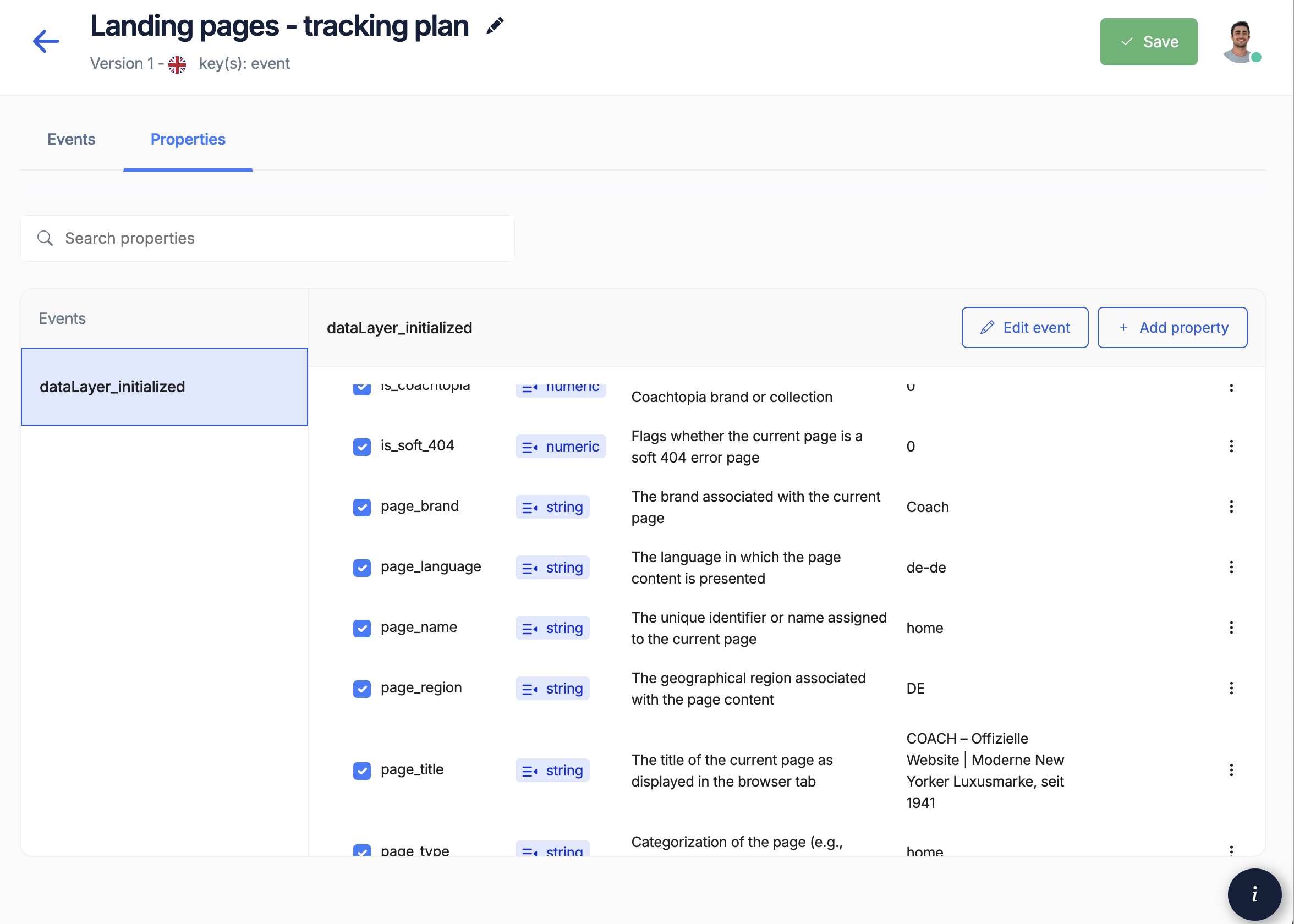
What are variables?
Simple explanation
When someone views a product on your website, you might track:- Event: “product_viewed”
- Variables: The details about that product view
- Product ID (like SKU12345)
- Product name (Blue T-Shirt)
- Price ($29.99)
- Category (Clothing)
Why configure variables?
Without rules, your tracking can collect messy data:- Prices might come through as text instead of numbers
- Product IDs might be missing or wrong format
- Currencies might be inconsistent
Setting up variable rules
Basic variable properties
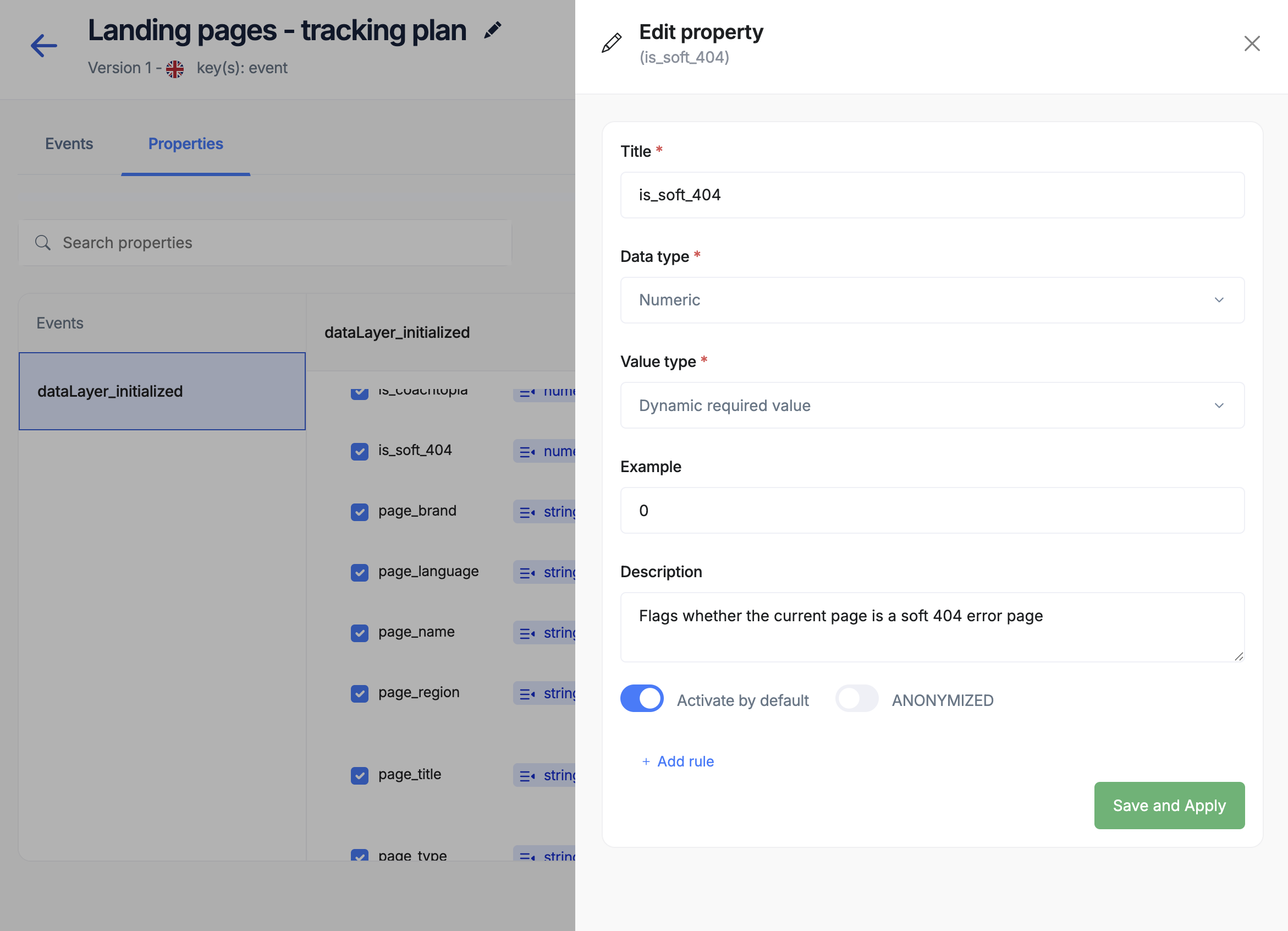
For each piece of data you collect, define:- What it is
- What type
- Requirements
Identification
- Name: How developers reference it (product_id)
- Display name: How you see it (Product ID)
- Description: What it means (Unique product code)
Common variable types
E-commerce variables
Product information
- Product ID/SKU
- Product name
- Price
- Category
- Brand
- Availability
Transaction data
- Order ID
- Total amount
- Currency
- Payment method
- Shipping cost
- Tax amount
Customer details
- Customer ID
- Customer type
- Login status
- Location
- Preferences
Behavior tracking
- Page views
- Search terms
- Click locations
- Time on page
- Scroll depth
Setting rules for each type
Text fields
Text fields
Examples: Product names, IDs, categoriesCommon rules:
- Maximum length (e.g., 255 characters)
- Required format (e.g., SKU must start with “PRD-”)
- Can’t be empty
- Case sensitivity
Numbers
Numbers
Examples: Prices, quantities, percentagesCommon rules:
- Must be positive
- Maximum value (e.g., price under $10,000)
- Decimal places (e.g., 2 for currency)
- Whole numbers only (for quantities)
Yes/No values
Yes/No values
Examples: Is logged in, has premium, accepted termsCommon rules:
- Must be true or false
- Default value if missing
- What counts as “yes” (true, 1, yes)
Lists
Lists
Examples: Product categories, selected optionsCommon rules:
- Minimum items (at least 1)
- Maximum items (no more than 10)
- No duplicates
- Valid values only
Real-world examples
Product tracking
For tracking product information: Product ID- Type: Text
- Required: Yes
- Format: Must match your SKU pattern
- Example: “SKU-12345” or “PROD-BLUE-SHIRT-M”
- Type: Number
- Required: Yes
- Rules: Must be positive, maximum 2 decimal places
- Example: 29.99 (not “$29.99” or “29.99 USD”)
- Type: Text
- Required: Yes
- Allowed values: List of your categories
- Example: “Clothing”, “Electronics”, “Home”
Customer tracking
For tracking customer data: Customer ID- Type: Text
- Required: When logged in
- Privacy: May need to be anonymized
- Example: “CUST-12345” or hashed value
- Type: Text
- Required: No
- Allowed values: “guest”, “member”, “premium”, “business”
- Default: “guest”
Privacy considerations
Protecting customer data
Some variables contain sensitive information: Email addresses- Consider anonymizing (showing only domain)
- Or hash for privacy
- Never expose in reports
- Phone numbers
- Full names
- Addresses
- Payment details
- IP addresses (truncate last part)
- Precise coordinates
- Home addresses
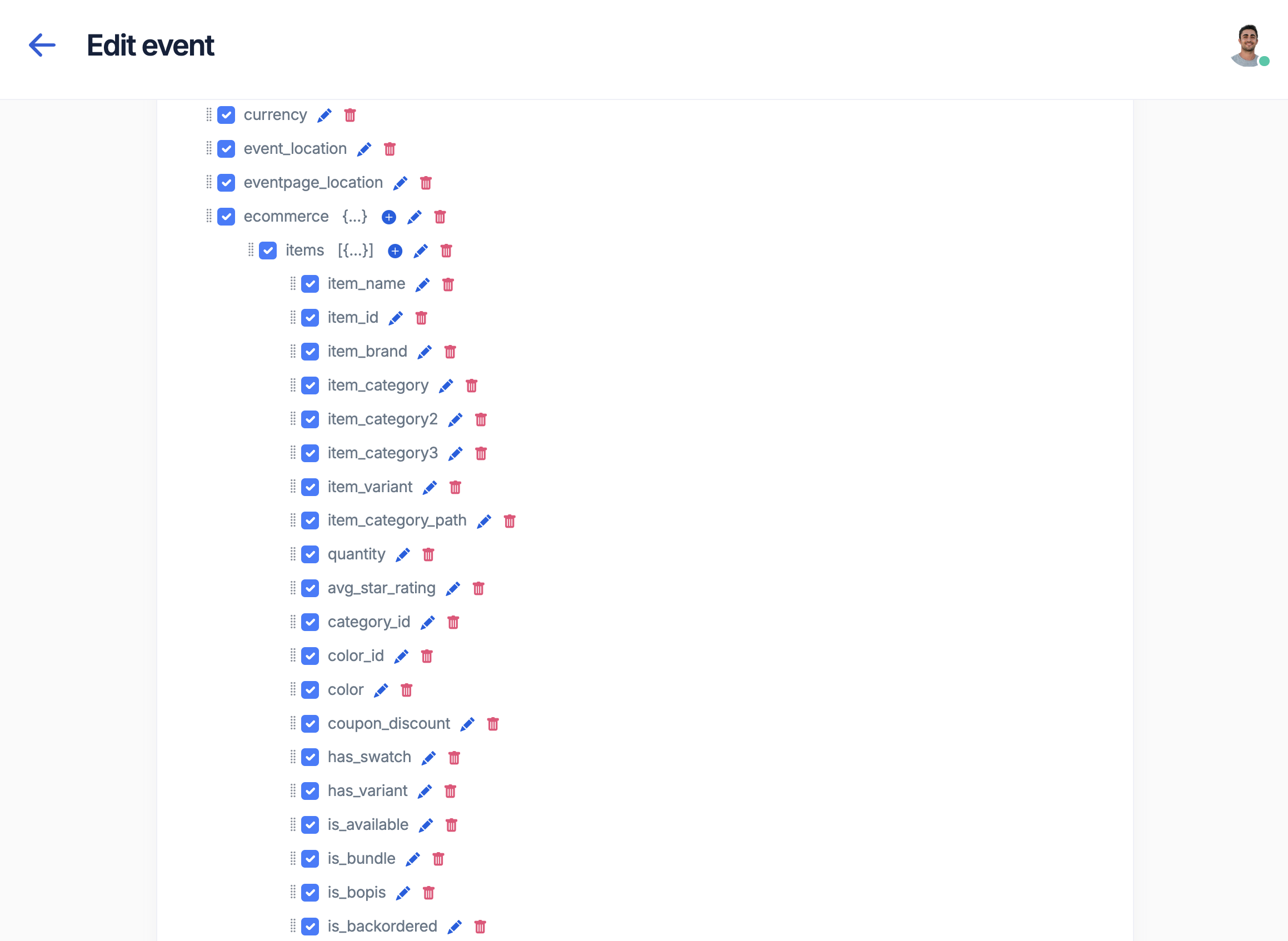
Anonymization options
Tag Insight can automatically protect sensitive data:- Hashing: Converts data to anonymous ID
- Masking: Hides part (e.g., john****@email.com)
- Removal: Doesn’t collect at all
- Truncation: Keeps only part (e.g., city not address)
Variable organization
Group related variables
Organize variables into logical categories: Product data- All product-related fields together
- Consistent naming (product_id, product_name, product_price)
- Same rules across events
- User identification
- Preferences
- Status information
- Behavior metrics
- Order information
- Payment details
- Shipping data
- Financial metrics
Create templates
Save time by creating standard variable sets: Basic product template- Product ID (required)
- Product name (required)
- Price (required)
- Category (required)
- Everything from basic
- Brand (optional)
- Color (optional)
- Size (optional)
- Reviews (optional)
Common issues and solutions
Issue: Wrong data types
Problem: Price coming through as “$29.99” (text) instead of 29.99 (number) Solution:- Set clear rules that price must be a number
- Work with developers to fix the source
- Tag Insight will alert when this happens
Issue: Missing required data
Problem: Orders without order IDs Solution:- Mark order_id as required
- Get alerts when it’s missing
- Fix before it affects reporting
Issue: Inconsistent formats
Problem: Dates in different formats (01/15/2024 vs 2024-01-15) Solution:- Define one standard format
- Document it clearly
- Monitor for violations
Best practices
Start simple
Don’t over-complicate initial rules
Document clearly
Explain what each variable means
Test thoroughly
Verify rules work with real data
Review regularly
Update as business needs change
Do’s and don’ts
Do:- ✅ Use descriptive names
- ✅ Set reasonable limits
- ✅ Consider edge cases
- ✅ Plan for growth
- ✅ Protect privacy
- ❌ Make rules too strict
- ❌ Forget documentation
- ❌ Ignore privacy laws
- ❌ Skip testing
- ❌ Assume one size fits all
Working with your team
Marketing’s role
- Define what data you need
- Explain business context
- Review variable names
- Approve privacy approach
Developer’s role
- Implement correct data types
- Follow naming conventions
- Handle edge cases
- Fix validation errors
Working together
- Regular reviews of variable health
- Quick fixes when issues arise
- Documentation updates
- Privacy compliance checks
Getting started checklist
Before configuring variables:- List all data points you need
- Define the purpose of each
- Determine required vs optional
- Consider privacy implications
- Document expected formats
- Plan validation rules
- Review with team
Next steps
Create event library
Build standard event templates
Import existing setup
Bring in current configuration
Set up monitoring
Configure quality alerts
Review best practices
Variable naming guide