Overview
Tag Insight uses a hierarchical structure to help you organize and manage your tracking implementations efficiently. Understanding this structure is key to getting the most out of the platform.Hierarchy overview
Organizations
An organization is the top-level container that represents your company or business unit.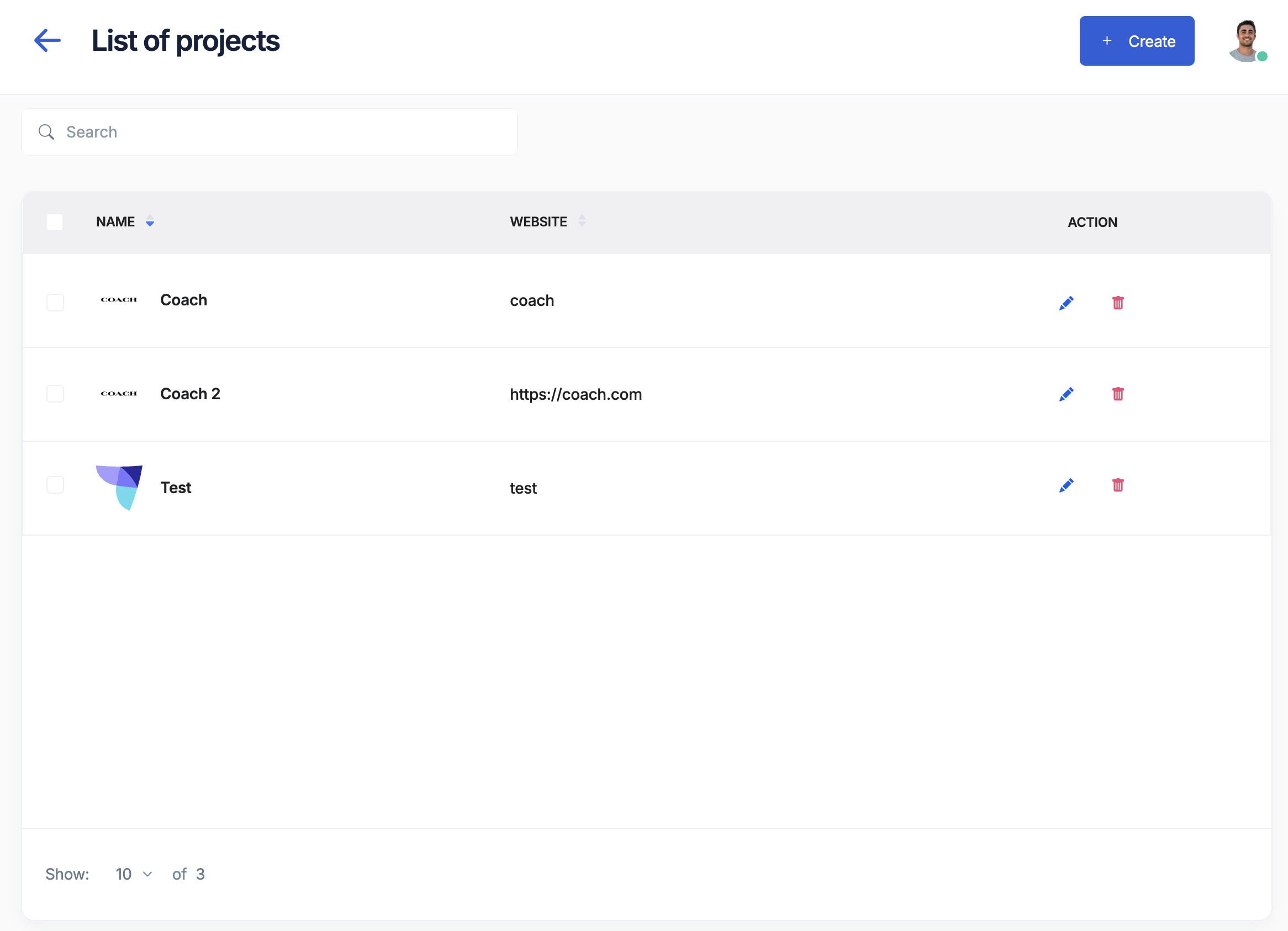
Key features
- Centralized Management: Manage all projects from one place
- Shared Resources: Event libraries and templates shared across projects
- User Management: Control access and permissions organization-wide
- Billing: Single billing account for all projects
Creating an organization
When you first sign up for Tag Insight, you’ll create your organization:1
Sign up
Complete the registration process
2
Name your organization
Choose a name that represents your company or team
3
Configure settings
Set timezone, default language, and other preferences
Organization settings
Navigate to Settings > Organization to configure:- General Information: Name, logo, description
- Default Preferences: Timezone, date format, language
- Security Settings: SSO, 2FA requirements
- Billing Information: Payment methods, invoicing
Projects
Projects represent individual tracking implementations. Each project corresponds to a specific website, application, or environment.When to create projects
Create separate projects for:Different websites
Each website or domain should have its own project
Environments
Separate projects for staging and production
Brands
Different brands even if on the same platform
Regions
Geographically separated properties with different tracking
Creating a project
1
Navigate to projects
From your organization dashboard, click New Project
2
Configure basic settings
- Project Name: Descriptive name (e.g., “Main Site - Production”)
- Project ID: Auto-generated unique identifier
- Description: Optional details about the project
3
Select tag management system
Choose your TMS:
- Google Tag Manager
- Commander Act
- Tealium
- Custom
4
Add project logo
Upload a logo for better identification in reports
Project components
Each project contains:1. Tracking plans
- Central repository of all events and variables
- Version control for tracking changes
- Import/export capabilities
2. Monitoring & audits
- Automated audit configuration
- Real-time monitoring settings
- Alert rules and notifications
3. Data layer collector
- Historical data layer logs
- Debug information
- Performance metrics
4. Project settings
- Pixel configuration
- Environment variables
- Access controls
Best practices
Organization structure
- Single brand
- Multi-brand
- Agency
For companies with one brand:
Naming conventions
Use clear, consistent naming:- Include Environment: “Production”, “Staging”, “Development”
- Include Property: “Main Site”, “Mobile App”, “Blog”
- Include Region: “US”, “EU”, “APAC” if applicable
- Be Descriptive: Avoid abbreviations that might confuse team members
Good examples
- ✅ “E-commerce Site - Production - US”
- ✅ “Mobile App - Staging Environment”
- ✅ “Brand Website - Development”
Poor examples
- ❌ “Prod”
- ❌ “Test Site 2”
- ❌ “New Project”
Managing multiple projects
Project switching
Quickly switch between projects using:- The project selector in the top navigation
- Keyboard shortcut:
Cmd/Ctrl + K - Direct URLs:
app.taginsight.com/projects/[project-id]
Cross-project features
Shared event library
Events defined at the organization level can be reused across projects:1
Create organization event
Define common events in Organization > Event Library
2
Use in projects
Import organization events when creating project tracking plans
3
Maintain consistency
Updates to organization events can cascade to projects
Global reports
View data across multiple projects:- Organization dashboard shows all project statuses
- Consolidated audit reports
- Cross-project tracking quality metrics
Access control
Organization level
- Owner: Full access to all settings and projects
- Admin: Manage projects and users
- Billing: Access to billing and invoices only
Project level
- Editor: Full access to project configuration
- Viewer: Read-only access to reports and data
- Auditor: Can run audits but not change settings
Users can have different roles in different projects while maintaining their organization-level permissions.
Common scenarios
Scenario 1: E-commerce platform
Scenario 2: Media company
Scenario 3: SaaS platform
Migration guide
Moving from another platform? Here’s how to structure your Tag Insight setup:1
Audit current setup
List all properties, environments, and tracking implementations
2
Plan project structure
Map each implementation to a Tag Insight project
3
Create organization
Set up your organization with proper settings
4
Create projects
Create projects following naming conventions
5
Import tracking plans
Use import tools to migrate existing tracking plans
Next steps
User management
Learn how to add team members and manage permissions
Create tracking plans
Start building your tracking plans