

Overview
Google Tag Manager (GTM) is the most popular way to manage tracking on websites. If your website uses GTM, setting up Tag Insight is straightforward - your technical team just needs to add one tag.What you’ll need
Before starting, make sure you have:- ✅ Someone with access to your Google Tag Manager account
- ✅ Your Tag Insight Project ID (found in your dashboard)
- ✅ About 15 minutes for setup
Don’t have GTM access? Ask your web developer or digital marketing team - they’ll have it!
Setup process
Step 1: Access Google Tag Manager
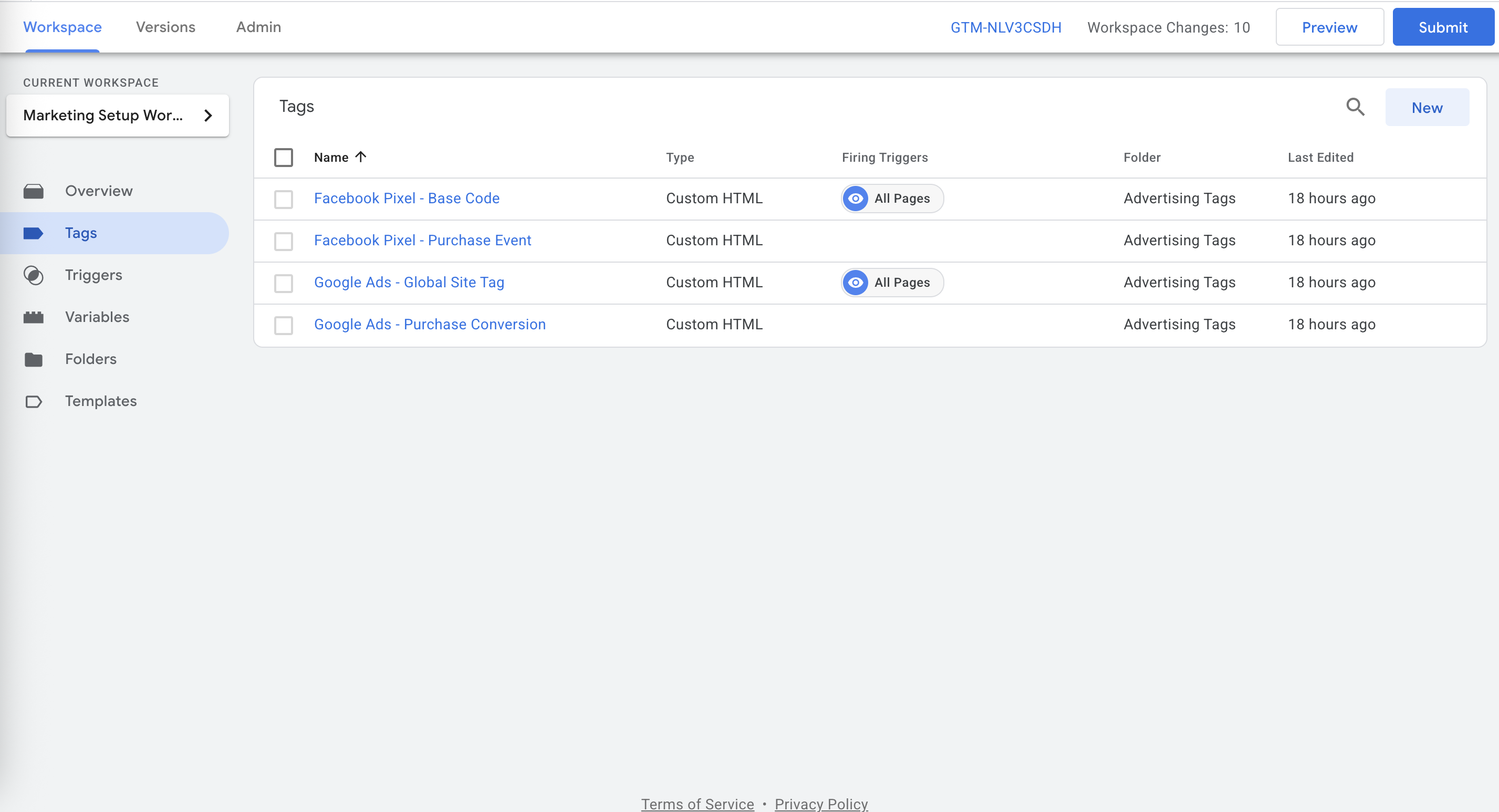
1
Log into GTM
Go to tagmanager.google.com and sign in
2
Select your container
Choose the container for your website
3
Navigate to Tags
Click “Tags” in the left menu
4
Create new tag
Click “New” to create a tag for Tag Insight
Step 2: Configure Tag Insight
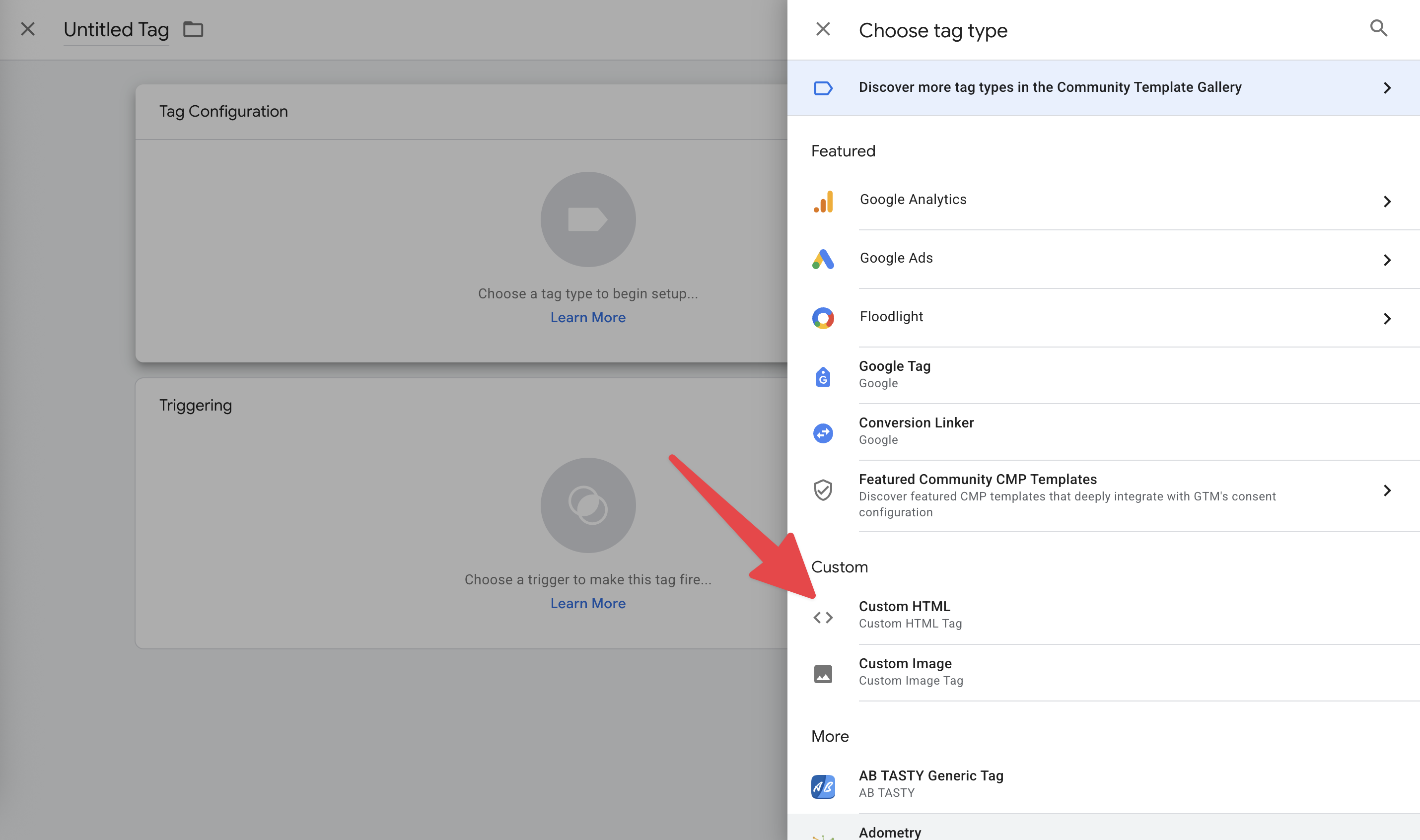
- Name the tag “Tag Insight - Monitoring”
- Choose “Custom HTML” as the tag type
- Add the Tag Insight code (they can get this from our support team)
- Replace YOUR_PROJECT_ID with your actual project ID
Step 3: Set where it runs
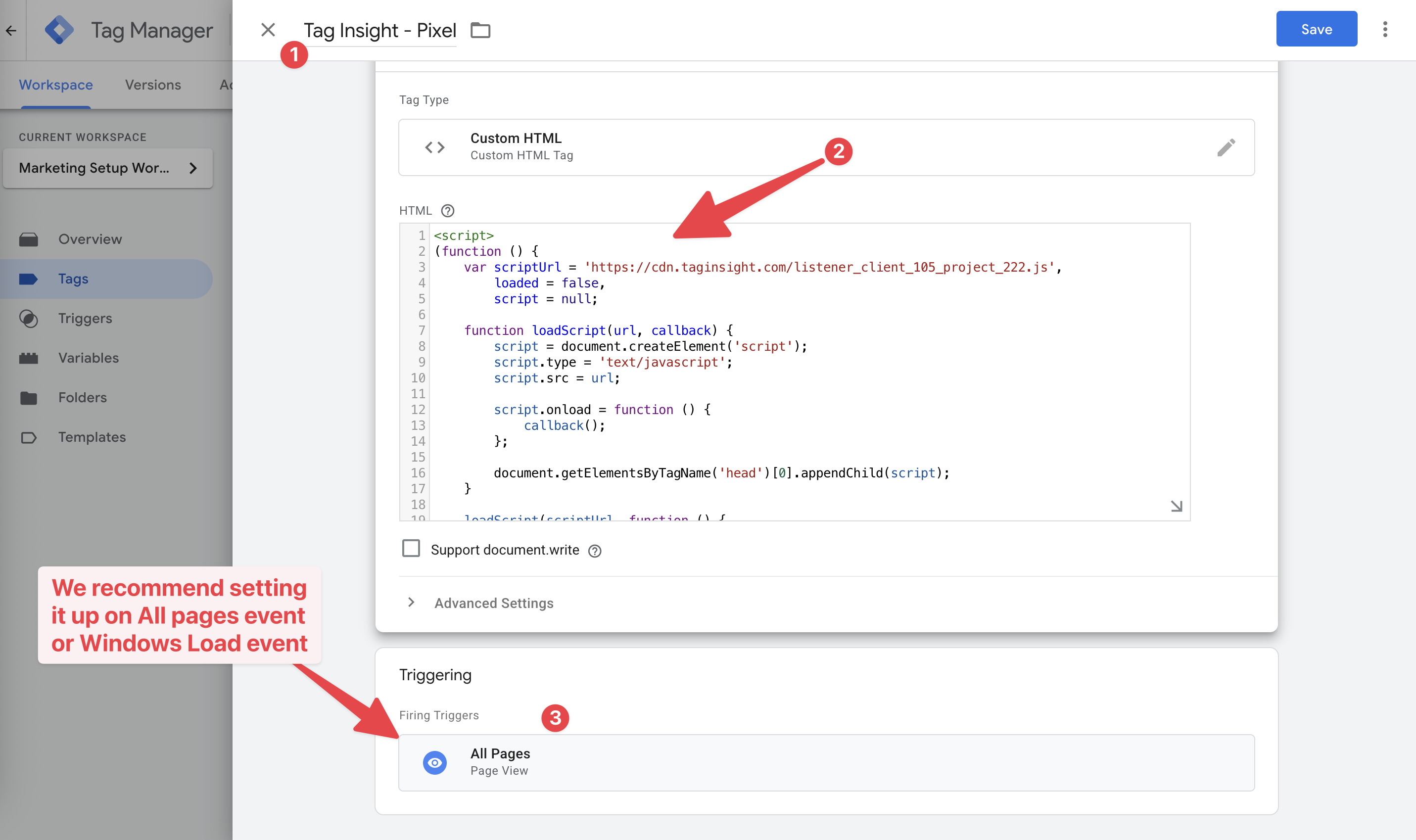
- All pages (Recommended)
- Specific pages only
- Single-page applications
Best for most websites
- Tracks everything automatically
- No pages missed
- Easiest to maintain
Step 4: Test before going live
1
Preview mode
Your developer will test using GTM’s Preview mode
2
Browse your site
They’ll click around to ensure tracking works
3
Check Tag Assistant
GTM shows which tags are firing correctly
4
Verify in Tag Insight
You can check the Live Debugger to see data flowing
Different setups
Multiple environments
If you have staging and production sites:- Create separate Tag Insight projects for each
- Your developer will configure GTM to use the right project ID
- This keeps test data separate from real data
E-commerce websites
For online stores:- Tag Insight automatically works with standard e-commerce tracking
- No special configuration needed
- Compatible with Google Analytics 4 e-commerce
Multiple websites
Managing several sites? You can:- Use one GTM container for all sites
- Create separate Tag Insight projects for each
- Or combine them into one project (ask support for guidance)
Working with your team
For marketing managers
Share this guide with your developer and ask them to:- Install Tag Insight in GTM
- Test it’s working properly
- Publish the changes
- Confirm when it’s live
Questions to ask your developer
- “Is Tag Insight installed on all our pages?”
- “Did you test it in Preview mode?”
- “When will it be published to the live site?”
- “Are staging and production using different project IDs?”
What happens after installation
Once installed, you’ll see:- Data appearing in your Tag Insight dashboard within minutes
- The Live Debugger showing real-time activity
- Audit reports starting to generate
Common questions
Do I need to know how to use GTM?
Do I need to know how to use GTM?
No, your technical team handles GTM. You just need to provide them with your Tag Insight Project ID and this guide.
How do I know it's working?
How do I know it's working?
Check your Tag Insight Live Debugger - you should see events appearing as people browse your site.
What if we don't use GTM?
What if we don't use GTM?
No problem! Tag Insight can be installed directly on your website or through other tag managers like Commander Act.
Best practices
Test first
Always test in staging before going live
Document setup
Keep notes about your configuration
Regular checks
Verify tracking after website updates
Team communication
Keep marketing and tech teams aligned
Troubleshooting
If tracking isn’t working:No data in dashboard
No data in dashboard
- Check the tag is published in GTM (not just saved)
- Verify you’re using the correct Project ID
- Wait 5 minutes and refresh
- Contact support if issues persist
Data missing from some pages
Data missing from some pages
- The GTM container might not be on all pages
- Check if triggers are excluding certain pages
- Some pages might load differently (like checkout)
Seeing test data in production
Seeing test data in production
- Make sure staging uses a different Project ID
- Check GTM isn’t published to the wrong environment
- Use Tag Insight’s environment features
Getting help
Need assistance with GTM setup?- Check our FAQ - Common setup questions answered
- Contact support - [email protected]
- Book a demo - Get guided setup help
- Ask your GTM consultant - They’re familiar with tag installation
Next steps
View Live Data
See your tracking in real-time
Import Tracking Plan
Set up what you want to track
Configure Alerts
Get notified of tracking issues
Install Extension
Debug tracking visually