> ## Documentation Index
> Fetch the complete documentation index at: https://docs.taginsight.com/llms.txt
> Use this file to discover all available pages before exploring further.
# Alerts & notifications
> Understand how Tag Insight alerts you to tracking issues
## Overview
Tag Insight monitors your tracking implementation through scheduled and continuous audits. When issues are detected, you can review them in the audit reports and export them for team distribution.
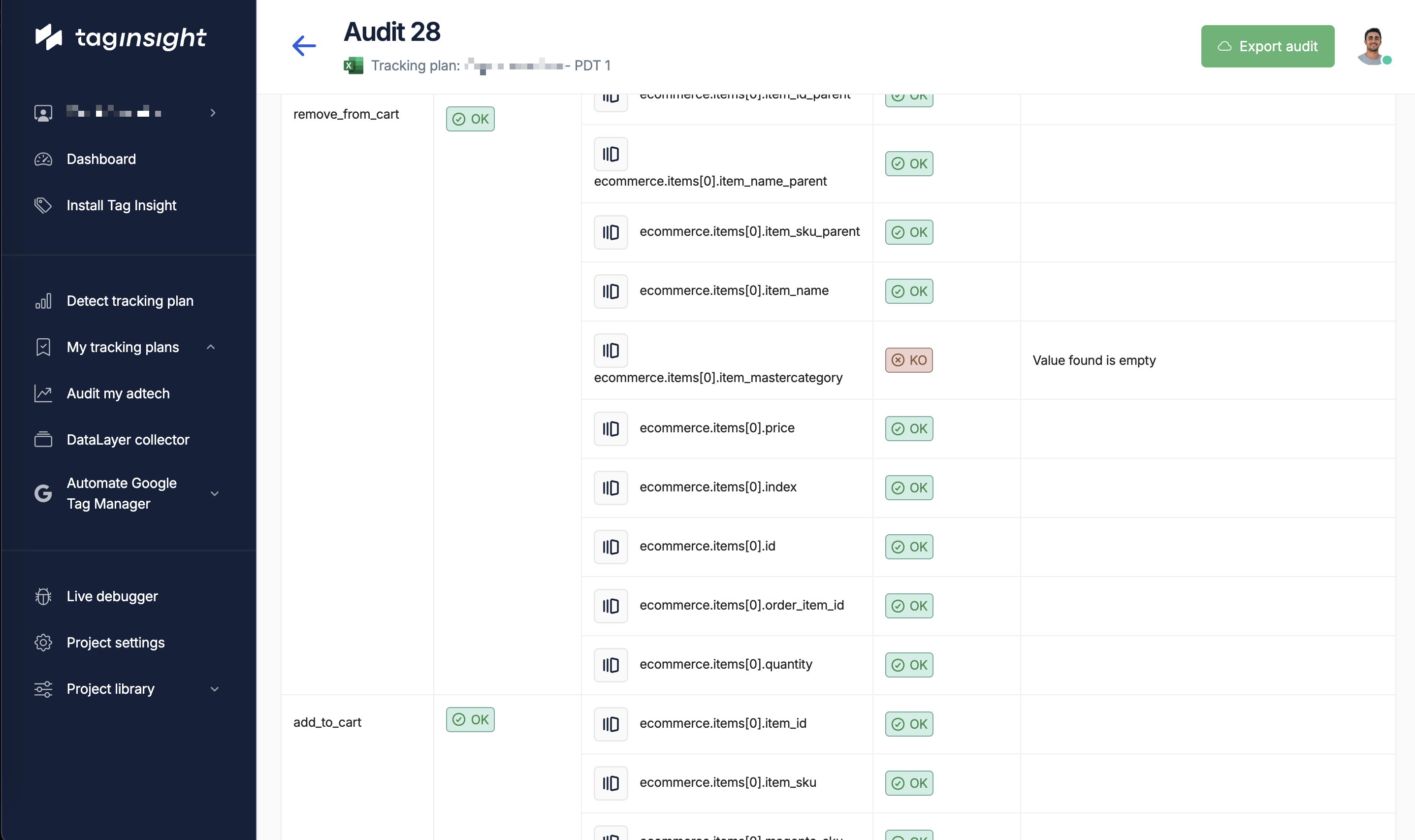 Tag Insight focuses on comprehensive audit reports that can be exported and shared with your team. Check the audit reports section for detailed information on monitoring results.
## How alerts work
### Alert generation process
Scheduled or continuous audits analyze your tracking data
The system compares live data against your tracking plan
When discrepancies are found, alerts are generated
Alert emails are sent to designated recipients
## Alert types
### Critical alerts
These require immediate attention:
* **Missing Required Events**: Key events (like purchases) not firing
* **Transaction Tracking Broken**: E-commerce tracking failures
* **Complete Event Failure**: Events that completely stop working
* **Data Type Mismatches**: Critical variables with wrong formats
### Warning alerts
Important but not immediately critical:
* **Missing Optional Variables**: Non-required data points absent
* **Value Format Issues**: Data not matching expected patterns
* **New Unknown Events**: Unplanned events detected
* **Performance Degradation**: Slow-loading tracking
### Informational alerts
For awareness and tracking:
* **Audit Completion**: Successful audit reports
* **Trend Changes**: Significant changes in event volumes
* **New Variables Detected**: Additional data being sent
* **Configuration Updates**: Changes to tracking plans
## Email notifications
### Email content
Alert emails include:
```
Subject: [Tag Insight Alert] Critical Issues Found - Main Site Production
Tag Insight has detected 3 critical issues in your tracking:
PROJECT: Main Site - Production
AUDIT: Daily Production Check
TIME: 2024-01-15 09:00 UTC
SEVERITY: Critical
ISSUES FOUND:
1. Missing Event: "purchase"
- Expected on: /checkout/confirmation
- Last seen: 2024-01-14 18:45 UTC
- Impact: High - No conversion tracking
2. Invalid Variable Type: "transaction_value"
- Event: checkout_complete
- Expected: number
- Received: string ("29.99")
- Occurrences: 145 times
3. Missing Required Variable: "transaction_id"
- Event: purchase
- Impact: Cannot reconcile with backend
- Pages affected: /checkout/success, /order/complete
View Full Report: [Link to Tag Insight Dashboard]
Quick Actions:
- View Affected Pages
- See Sample Data Layers
- Download Detailed Report
```
### Email recipients
Currently, alerts are sent to:
* Project editors
* Users who configured the audit
* Additional emails specified during audit setup
## Alert severity levels
### Understanding severity
**Immediate action required**
* Revenue-impacting issues
* Complete tracking failures
* Legal/compliance problems
Example: Purchase event not firing
**Should be addressed soon**
* Partial data loss
* Quality issues
* Non-critical missing data
Example: Product category missing
**For your information**
* Successful audits
* Minor variations
* Trend notifications
Example: New event detected
## Current alert features
### What you can do now
1. **Receive Email Alerts**: Get notified of tracking issues
2. **View in Dashboard**: Access detailed reports
3. **Export Reports**: Download full audit results
4. **Share with Team**: Forward alerts to stakeholders
### Alert timing
Based on your audit configuration:
* **Continuous Audits**: Near real-time alerts (5-15 minute delay)
* **Scheduled Audits**: Alerts sent after audit completion
* **On-Demand Audits**: Immediate results upon completion
## Best practices
### Managing alert fatigue
Start by monitoring only business-critical events like purchases and key conversions
Make optional variables truly optional to reduce false positives
For high-traffic sites, sampling can reduce noise while maintaining coverage
Weekly review of alert patterns to optimize configuration
### Response procedures
When you receive an alert:
Check if it's critical, warning, or informational
Click through to Tag Insight for complete details
* Check recent deployments
* Review code changes
* Verify tag manager updates
* Fix the issue
* Test the fix
* Monitor for resolution
Record what happened and how it was resolved
## Common alert scenarios
### Scenario 1: Post-deployment issues
```
Alert: Missing Event "add_to_cart"
Cause: New deployment overwrote tracking code
Action: Restore tracking implementation
Prevention: Include tracking in deployment tests
```
### Scenario 2: Tag manager changes
```
Alert: Variable type mismatch for "price"
Cause: GTM variable format changed
Action: Update GTM configuration
Prevention: Test GTM changes before publishing
```
### Scenario 3: Third-party interference
```
Alert: New unknown events detected
Cause: Marketing team added new tool
Action: Document and incorporate into tracking plan
Prevention: Coordinate tool additions
```
## Alert history
Access your alert history in the Tag Insight dashboard:
1. Navigate to **Monitoring > Alert History**
2. Filter by:
* Date range
* Severity
* Alert type
* Resolution status
3. Export history for analysis
## Planned enhancements
The Tag Insight team is working on advanced alert features including Slack integration, custom alert rules, and alert routing based on event types.
## Integration with workflows
### Current integrations
While advanced integrations are coming, you can currently:
1. **Email Forwarding**: Set up rules to forward alerts
2. **Manual Ticket Creation**: Create tickets from alert emails
3. **Dashboard Monitoring**: Keep Tag Insight dashboard open
4. **Export for Analysis**: Download data for custom processing
### Temporary workarounds
Until advanced features arrive:
```javascript theme={null}
// Example: Email filter for critical alerts
If email contains "[Tag Insight Alert] Critical"
Then:
- Forward to #alerts-critical Slack channel
- Create high-priority ticket
- Page on-call engineer
```
## FAQ
For continuous audits, alerts are typically sent within 5-15 minutes of issue detection.
Currently, email format is standardized. Customization is planned for future releases.
Review your tracking plan to ensure optional variables are marked correctly, and consider adjusting audit sampling.
Yes, you can specify multiple email addresses when configuring audits.
## Next steps
Understanding detailed audit reports
Configure your audit strategy
Resolve common tracking issues
Optimize your monitoring setup
Tag Insight focuses on comprehensive audit reports that can be exported and shared with your team. Check the audit reports section for detailed information on monitoring results.
## How alerts work
### Alert generation process
Scheduled or continuous audits analyze your tracking data
The system compares live data against your tracking plan
When discrepancies are found, alerts are generated
Alert emails are sent to designated recipients
## Alert types
### Critical alerts
These require immediate attention:
* **Missing Required Events**: Key events (like purchases) not firing
* **Transaction Tracking Broken**: E-commerce tracking failures
* **Complete Event Failure**: Events that completely stop working
* **Data Type Mismatches**: Critical variables with wrong formats
### Warning alerts
Important but not immediately critical:
* **Missing Optional Variables**: Non-required data points absent
* **Value Format Issues**: Data not matching expected patterns
* **New Unknown Events**: Unplanned events detected
* **Performance Degradation**: Slow-loading tracking
### Informational alerts
For awareness and tracking:
* **Audit Completion**: Successful audit reports
* **Trend Changes**: Significant changes in event volumes
* **New Variables Detected**: Additional data being sent
* **Configuration Updates**: Changes to tracking plans
## Email notifications
### Email content
Alert emails include:
```
Subject: [Tag Insight Alert] Critical Issues Found - Main Site Production
Tag Insight has detected 3 critical issues in your tracking:
PROJECT: Main Site - Production
AUDIT: Daily Production Check
TIME: 2024-01-15 09:00 UTC
SEVERITY: Critical
ISSUES FOUND:
1. Missing Event: "purchase"
- Expected on: /checkout/confirmation
- Last seen: 2024-01-14 18:45 UTC
- Impact: High - No conversion tracking
2. Invalid Variable Type: "transaction_value"
- Event: checkout_complete
- Expected: number
- Received: string ("29.99")
- Occurrences: 145 times
3. Missing Required Variable: "transaction_id"
- Event: purchase
- Impact: Cannot reconcile with backend
- Pages affected: /checkout/success, /order/complete
View Full Report: [Link to Tag Insight Dashboard]
Quick Actions:
- View Affected Pages
- See Sample Data Layers
- Download Detailed Report
```
### Email recipients
Currently, alerts are sent to:
* Project editors
* Users who configured the audit
* Additional emails specified during audit setup
## Alert severity levels
### Understanding severity
**Immediate action required**
* Revenue-impacting issues
* Complete tracking failures
* Legal/compliance problems
Example: Purchase event not firing
**Should be addressed soon**
* Partial data loss
* Quality issues
* Non-critical missing data
Example: Product category missing
**For your information**
* Successful audits
* Minor variations
* Trend notifications
Example: New event detected
## Current alert features
### What you can do now
1. **Receive Email Alerts**: Get notified of tracking issues
2. **View in Dashboard**: Access detailed reports
3. **Export Reports**: Download full audit results
4. **Share with Team**: Forward alerts to stakeholders
### Alert timing
Based on your audit configuration:
* **Continuous Audits**: Near real-time alerts (5-15 minute delay)
* **Scheduled Audits**: Alerts sent after audit completion
* **On-Demand Audits**: Immediate results upon completion
## Best practices
### Managing alert fatigue
Start by monitoring only business-critical events like purchases and key conversions
Make optional variables truly optional to reduce false positives
For high-traffic sites, sampling can reduce noise while maintaining coverage
Weekly review of alert patterns to optimize configuration
### Response procedures
When you receive an alert:
Check if it's critical, warning, or informational
Click through to Tag Insight for complete details
* Check recent deployments
* Review code changes
* Verify tag manager updates
* Fix the issue
* Test the fix
* Monitor for resolution
Record what happened and how it was resolved
## Common alert scenarios
### Scenario 1: Post-deployment issues
```
Alert: Missing Event "add_to_cart"
Cause: New deployment overwrote tracking code
Action: Restore tracking implementation
Prevention: Include tracking in deployment tests
```
### Scenario 2: Tag manager changes
```
Alert: Variable type mismatch for "price"
Cause: GTM variable format changed
Action: Update GTM configuration
Prevention: Test GTM changes before publishing
```
### Scenario 3: Third-party interference
```
Alert: New unknown events detected
Cause: Marketing team added new tool
Action: Document and incorporate into tracking plan
Prevention: Coordinate tool additions
```
## Alert history
Access your alert history in the Tag Insight dashboard:
1. Navigate to **Monitoring > Alert History**
2. Filter by:
* Date range
* Severity
* Alert type
* Resolution status
3. Export history for analysis
## Planned enhancements
The Tag Insight team is working on advanced alert features including Slack integration, custom alert rules, and alert routing based on event types.
## Integration with workflows
### Current integrations
While advanced integrations are coming, you can currently:
1. **Email Forwarding**: Set up rules to forward alerts
2. **Manual Ticket Creation**: Create tickets from alert emails
3. **Dashboard Monitoring**: Keep Tag Insight dashboard open
4. **Export for Analysis**: Download data for custom processing
### Temporary workarounds
Until advanced features arrive:
```javascript theme={null}
// Example: Email filter for critical alerts
If email contains "[Tag Insight Alert] Critical"
Then:
- Forward to #alerts-critical Slack channel
- Create high-priority ticket
- Page on-call engineer
```
## FAQ
For continuous audits, alerts are typically sent within 5-15 minutes of issue detection.
Currently, email format is standardized. Customization is planned for future releases.
Review your tracking plan to ensure optional variables are marked correctly, and consider adjusting audit sampling.
Yes, you can specify multiple email addresses when configuring audits.
## Next steps
Understanding detailed audit reports
Configure your audit strategy
Resolve common tracking issues
Optimize your monitoring setup